2026-04-16
复习和预习
昨天课堂内容
课前思考
今天课堂内容
- Ubuntu 系统基本管理
- Container技术梳理
Ubuntu 系统基本管理
系统安装
虚拟机硬件配置:
- CPU:2
- 内存:4G
- 网卡:1张NAT
- 硬盘:200G
新建虚拟机
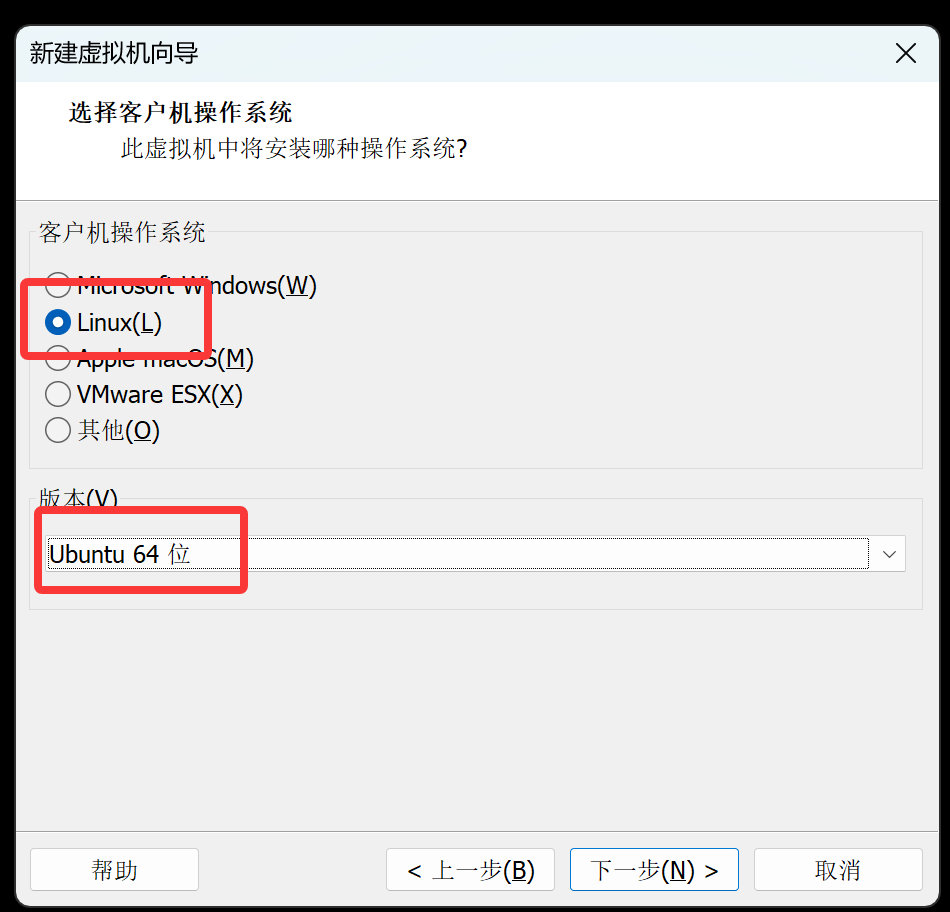
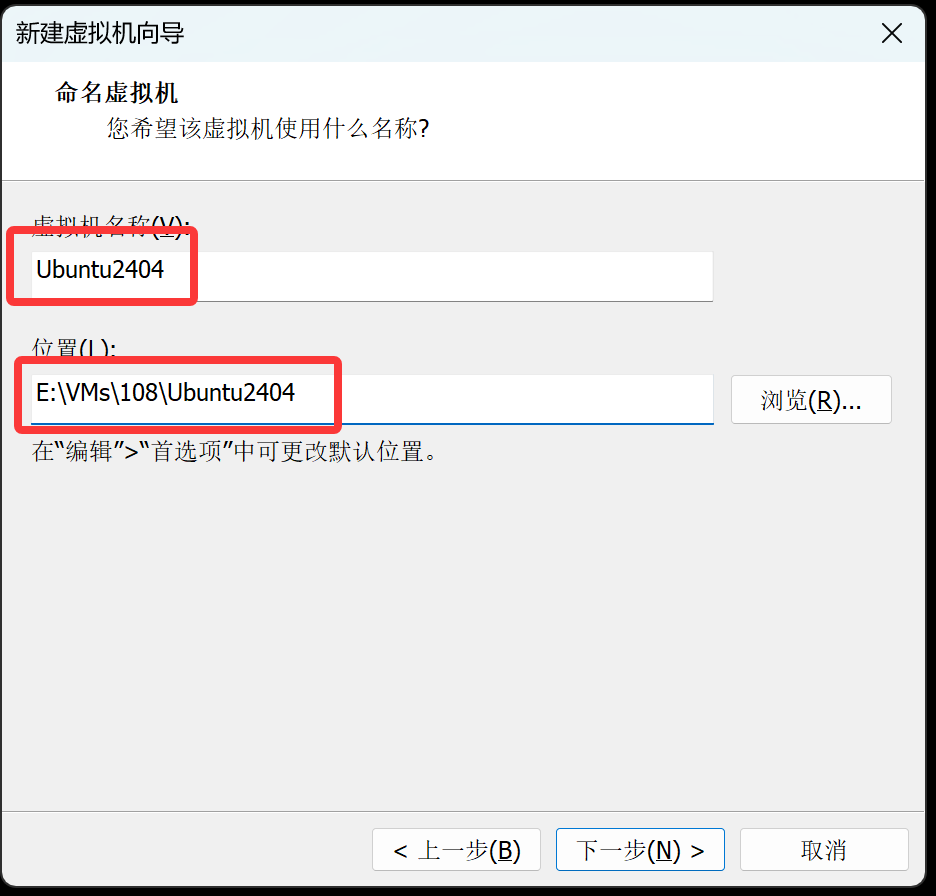
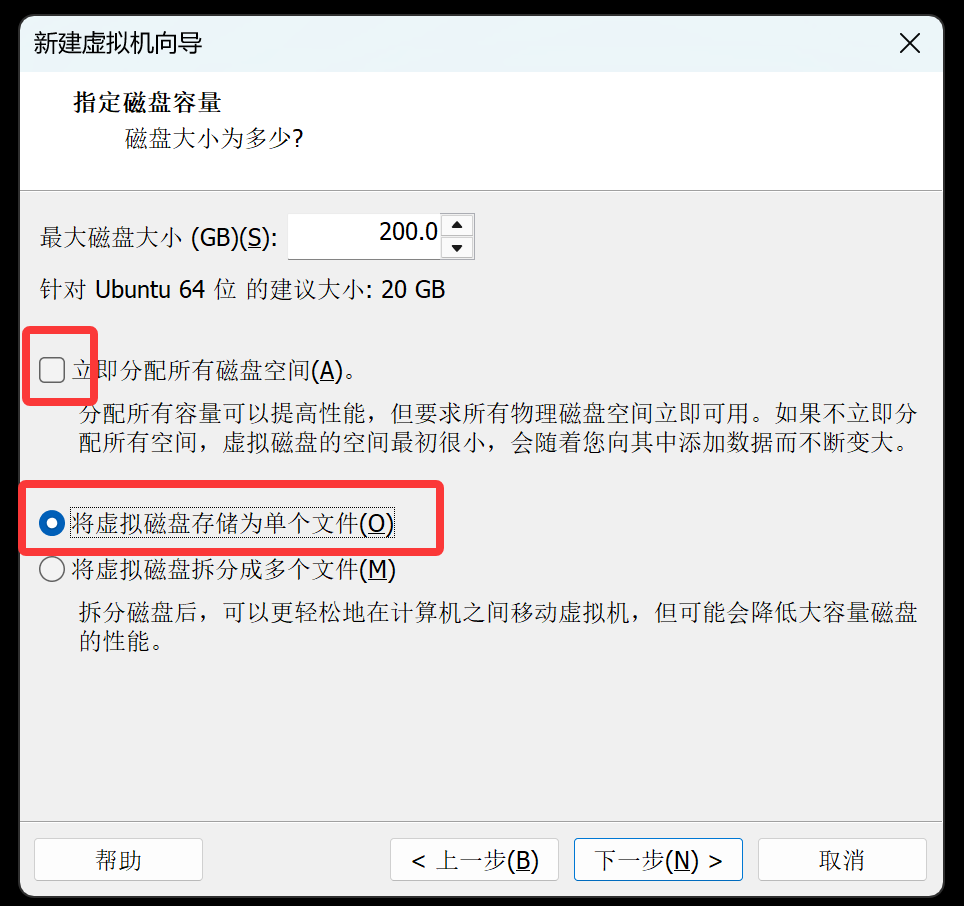
关联ISO镜像。
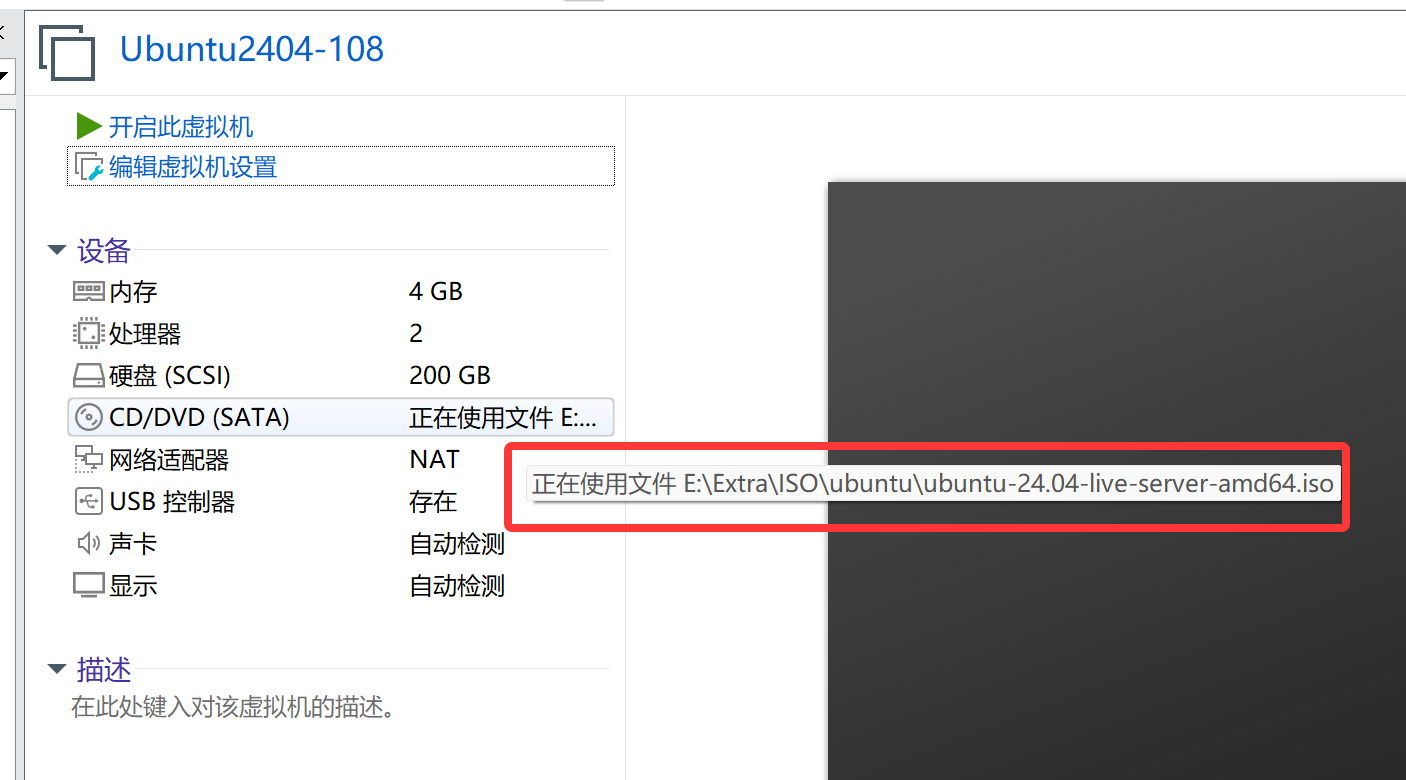
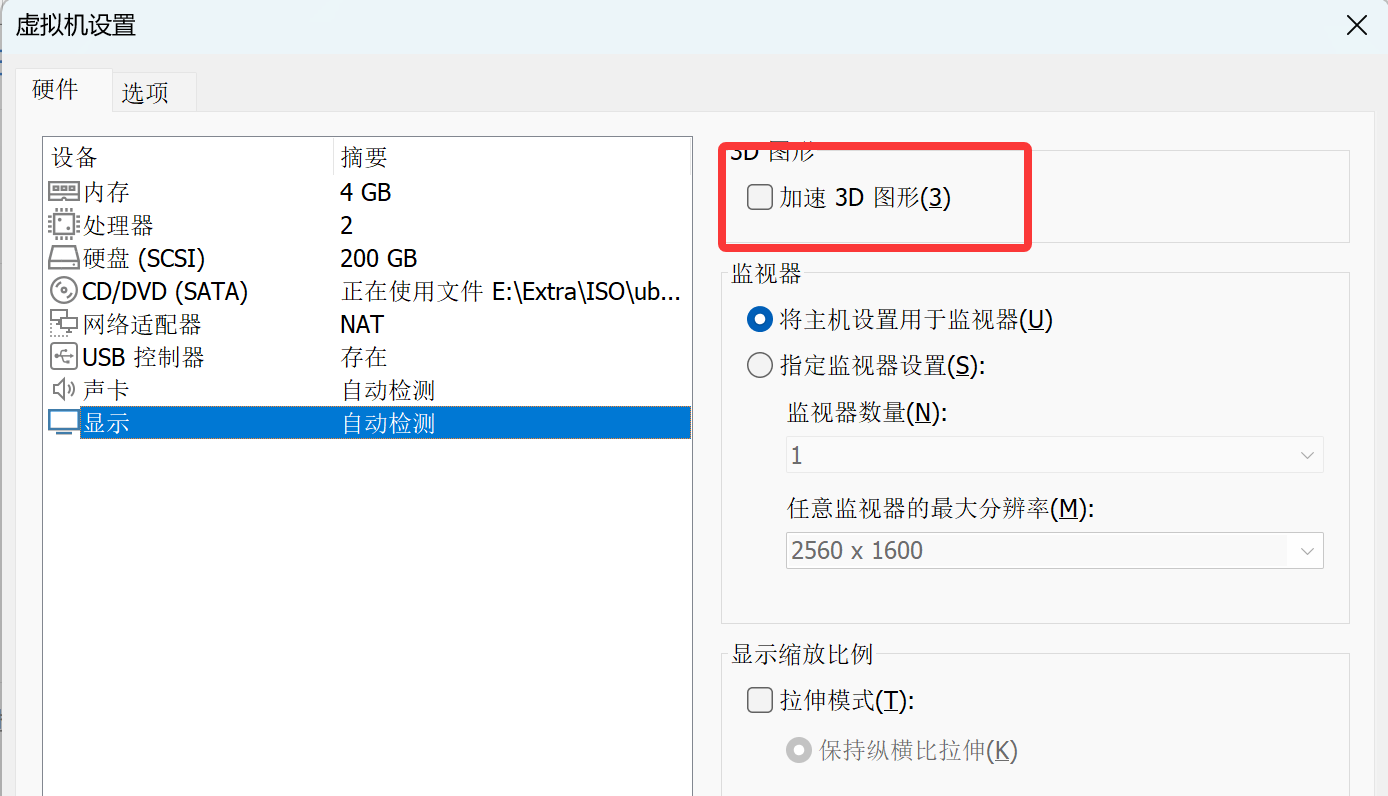
按需调整其他硬件,例如关闭 加速 3D 图形。
安装系统
启动电源,开始安装。
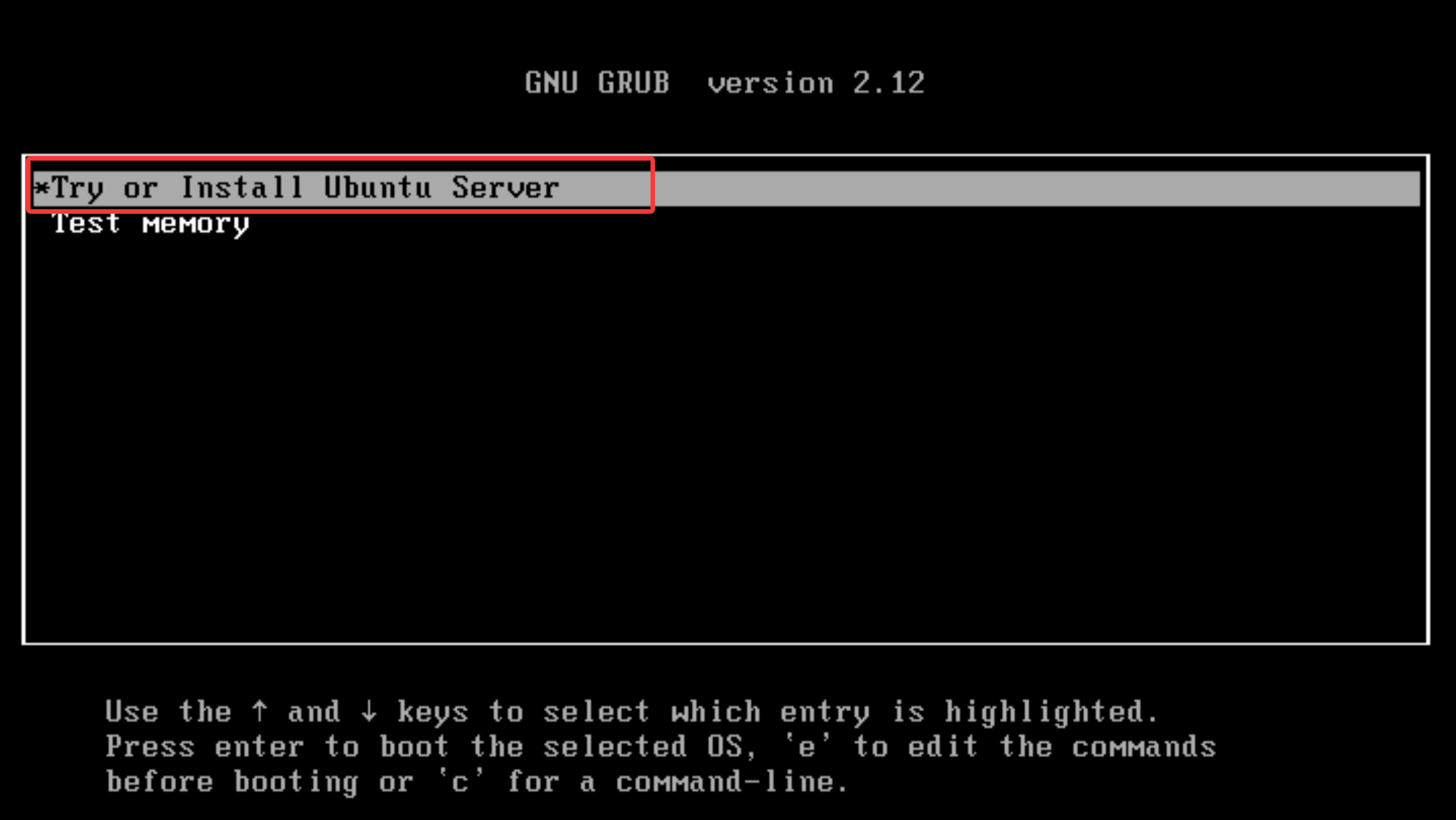
断开网络连接再安装,否则系统安装的时候会自动联网更新。

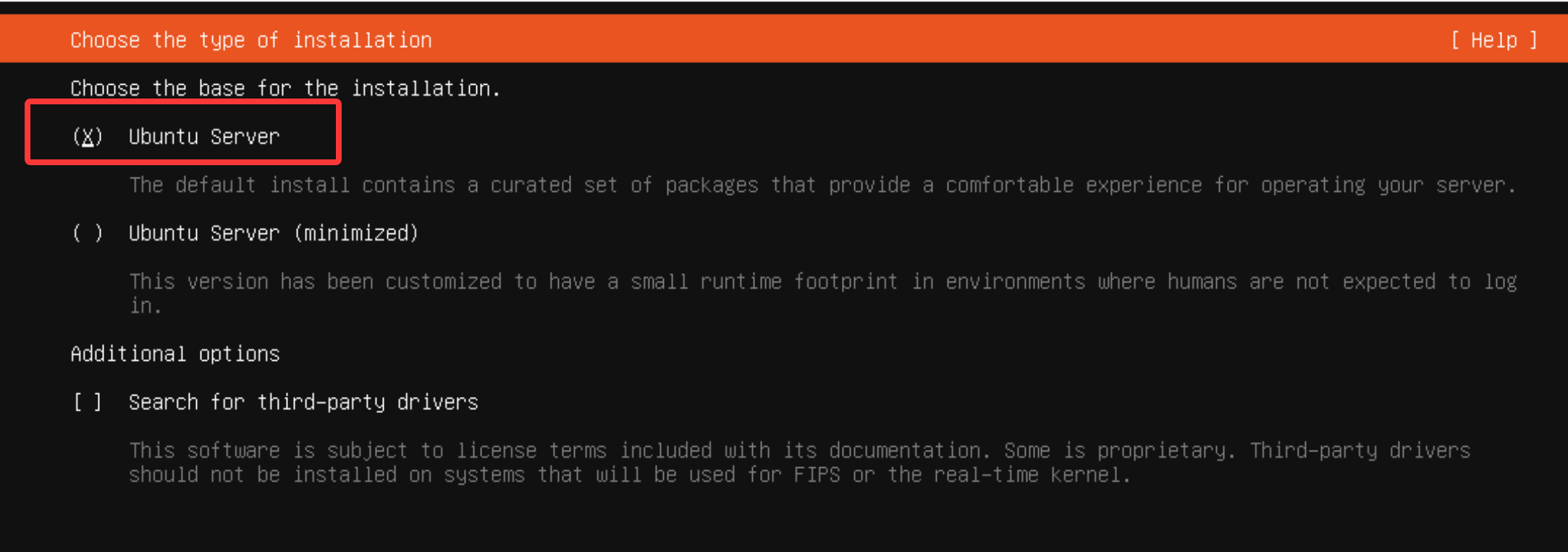
选择默认Ubuntu Server。如果你追求系统的干净些,选择第二个Minimized。
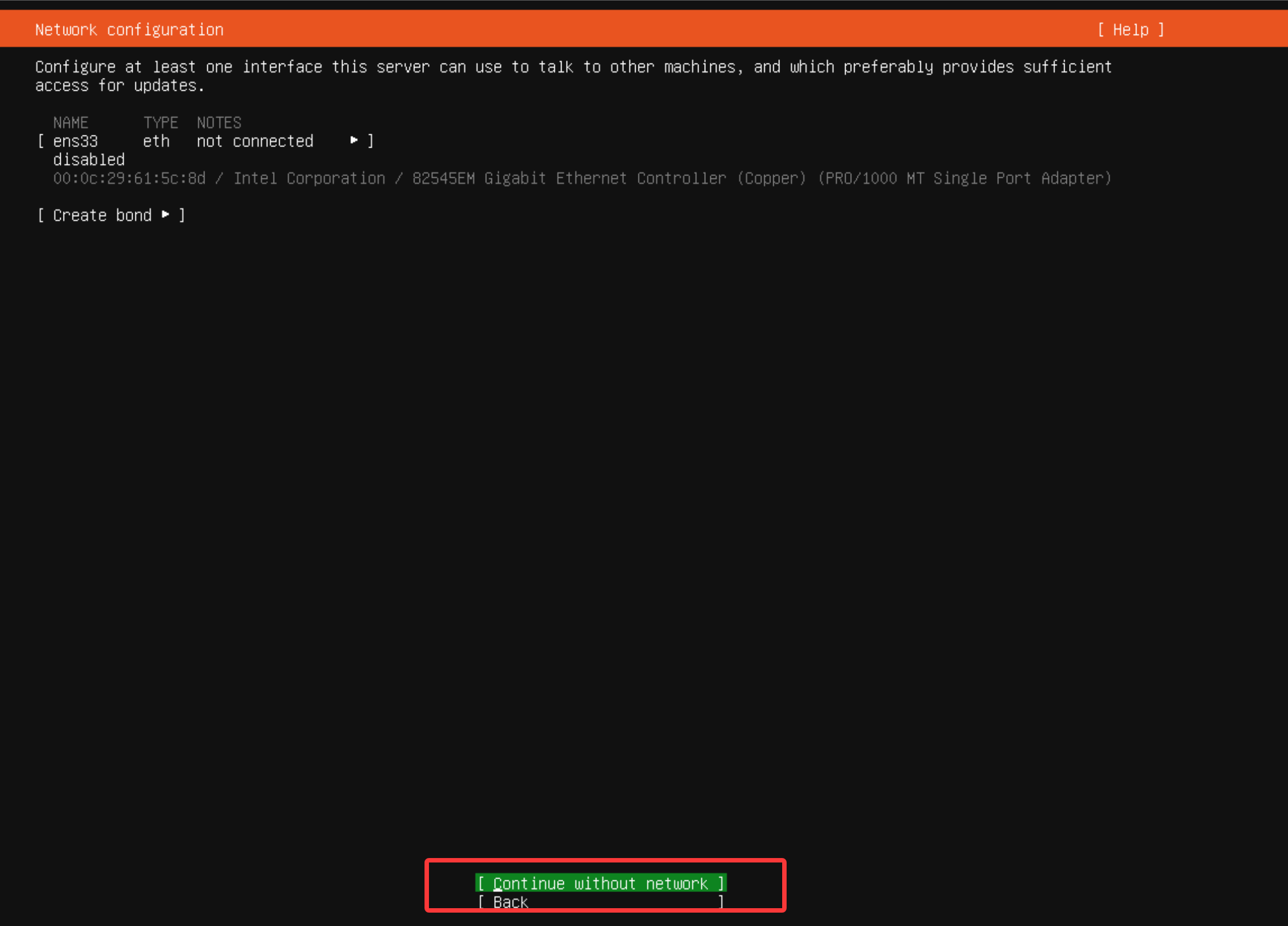
网络连接已经断开,这里选择不需要网络继续。
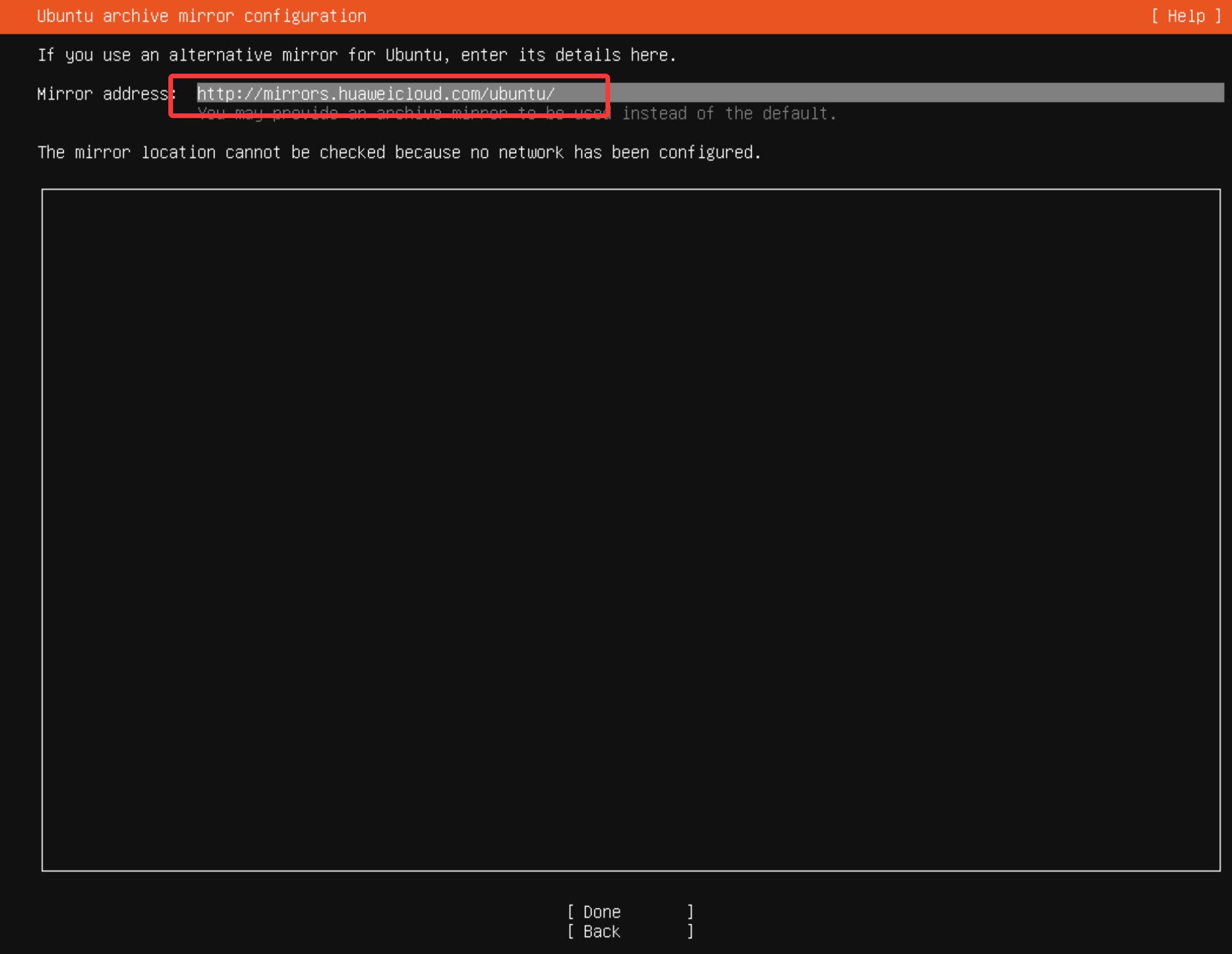
操作系统安装好后,使用华为cloud源作为Ubuntu仓库。
http://mirrors.hauweicloud.com/ubuntu
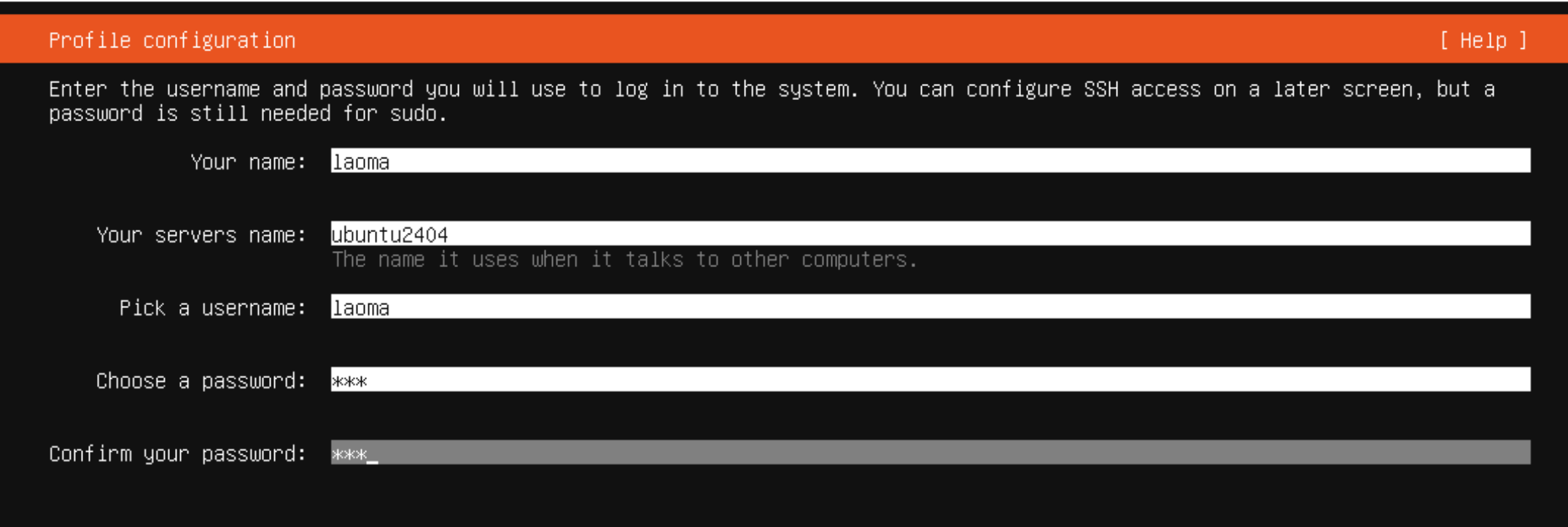
添加用户
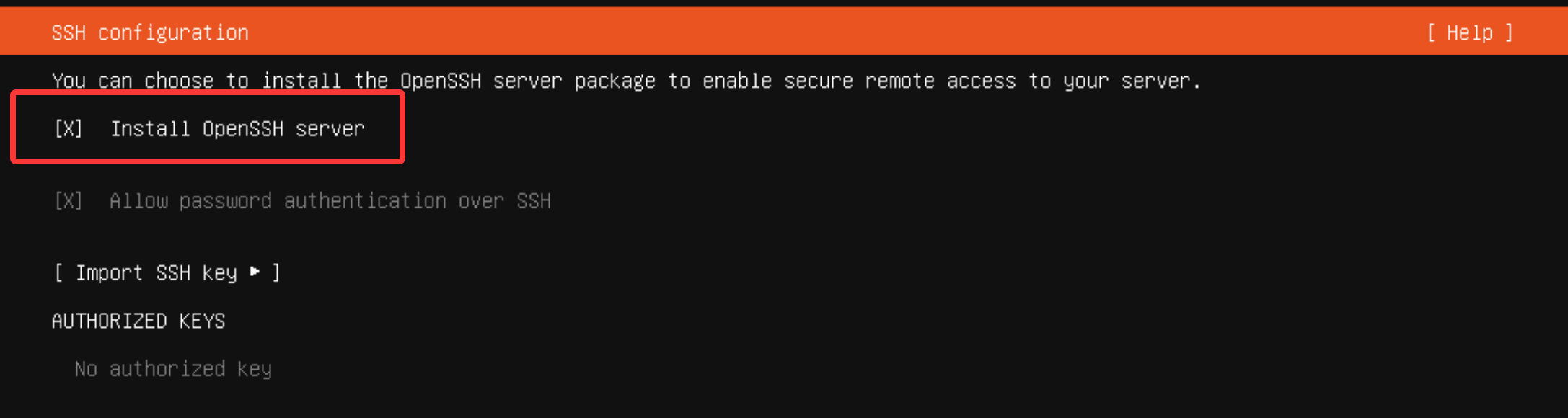
安装OpenSSH server
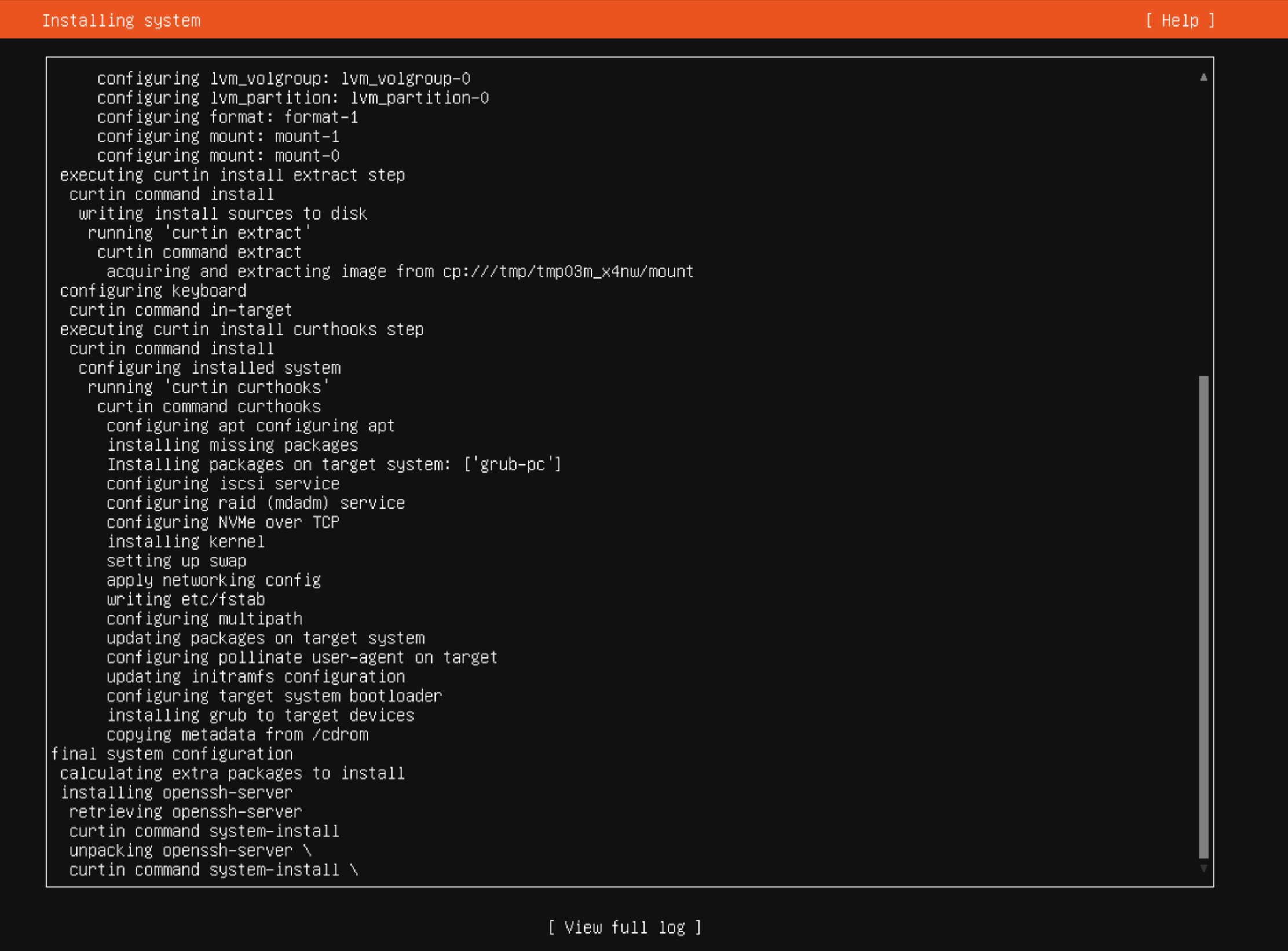
等待安装
重启系统
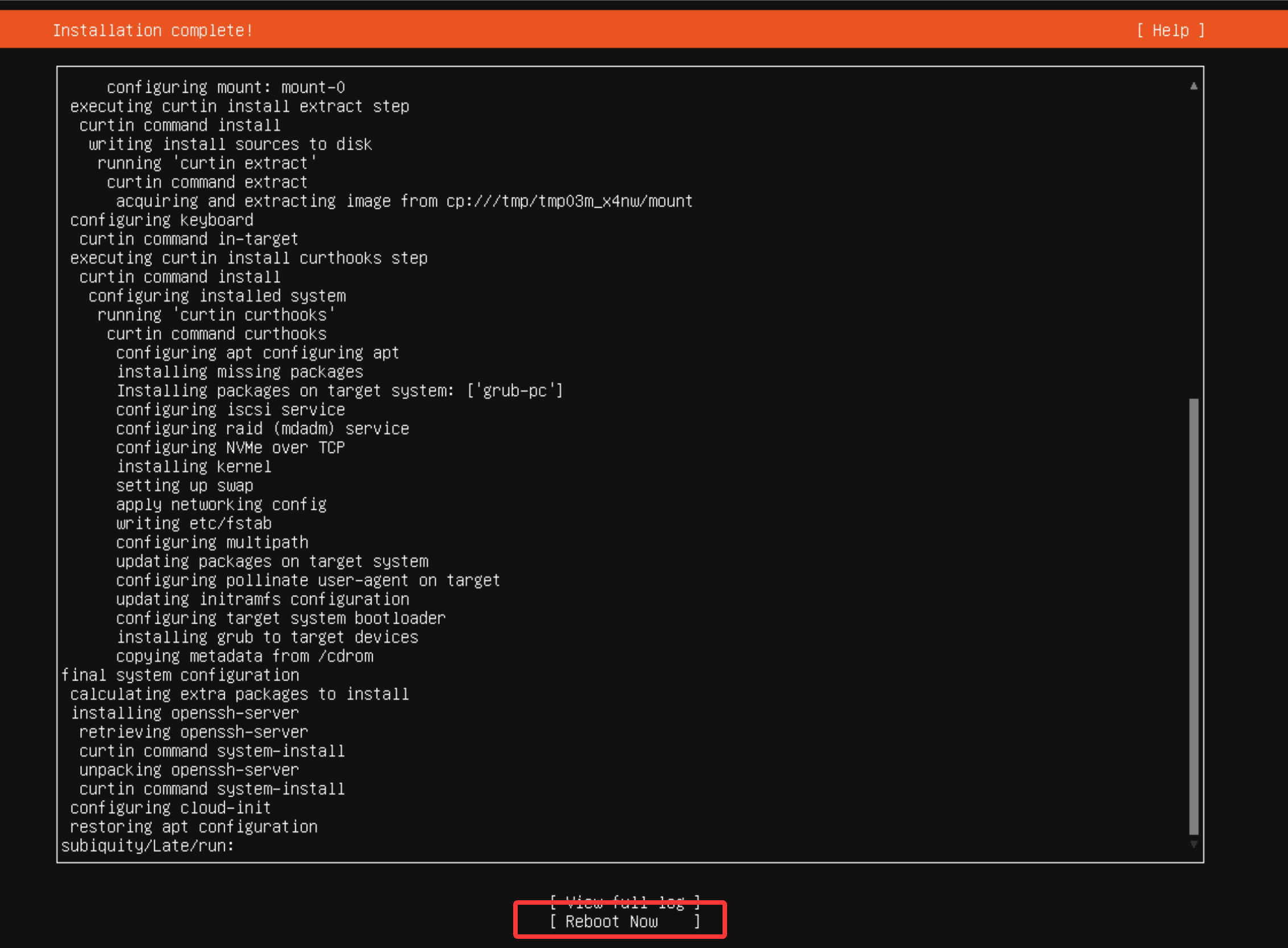
安装后配置
登录系统
首先将网络关联回来。

登录界面中的cloud-init作用是为了初始化系统,这里显示是导入了ssh公钥。
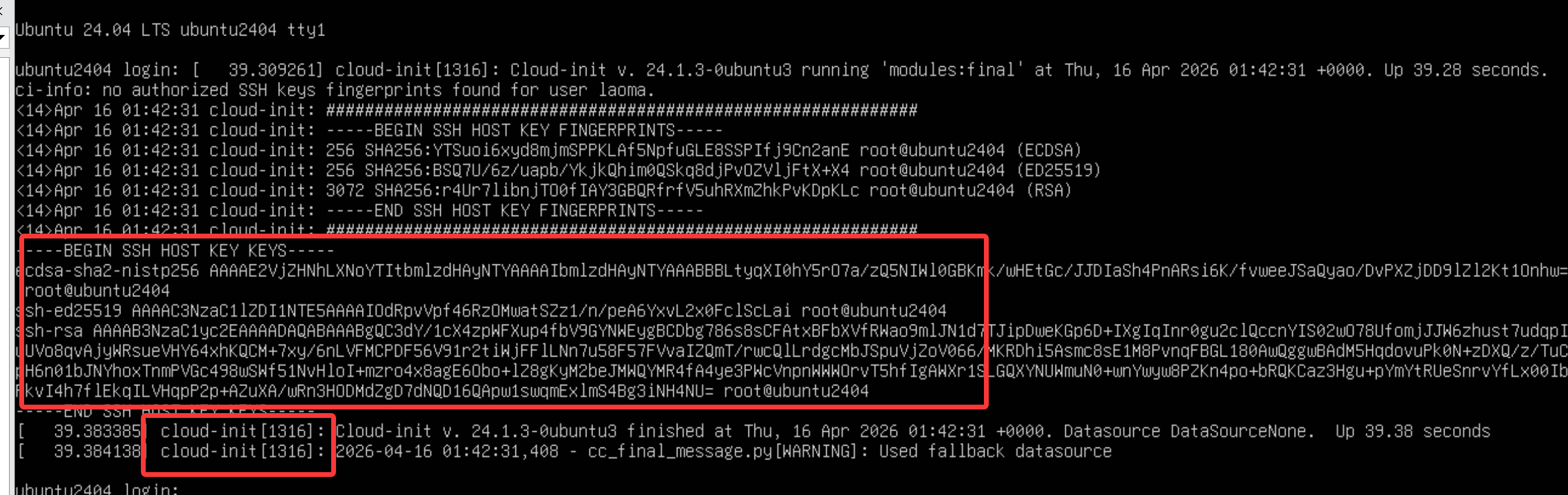
多按几次回车,再登录系统。默认情况,root用户未启用。使用系统安装时配置的普通用户,登录系统。
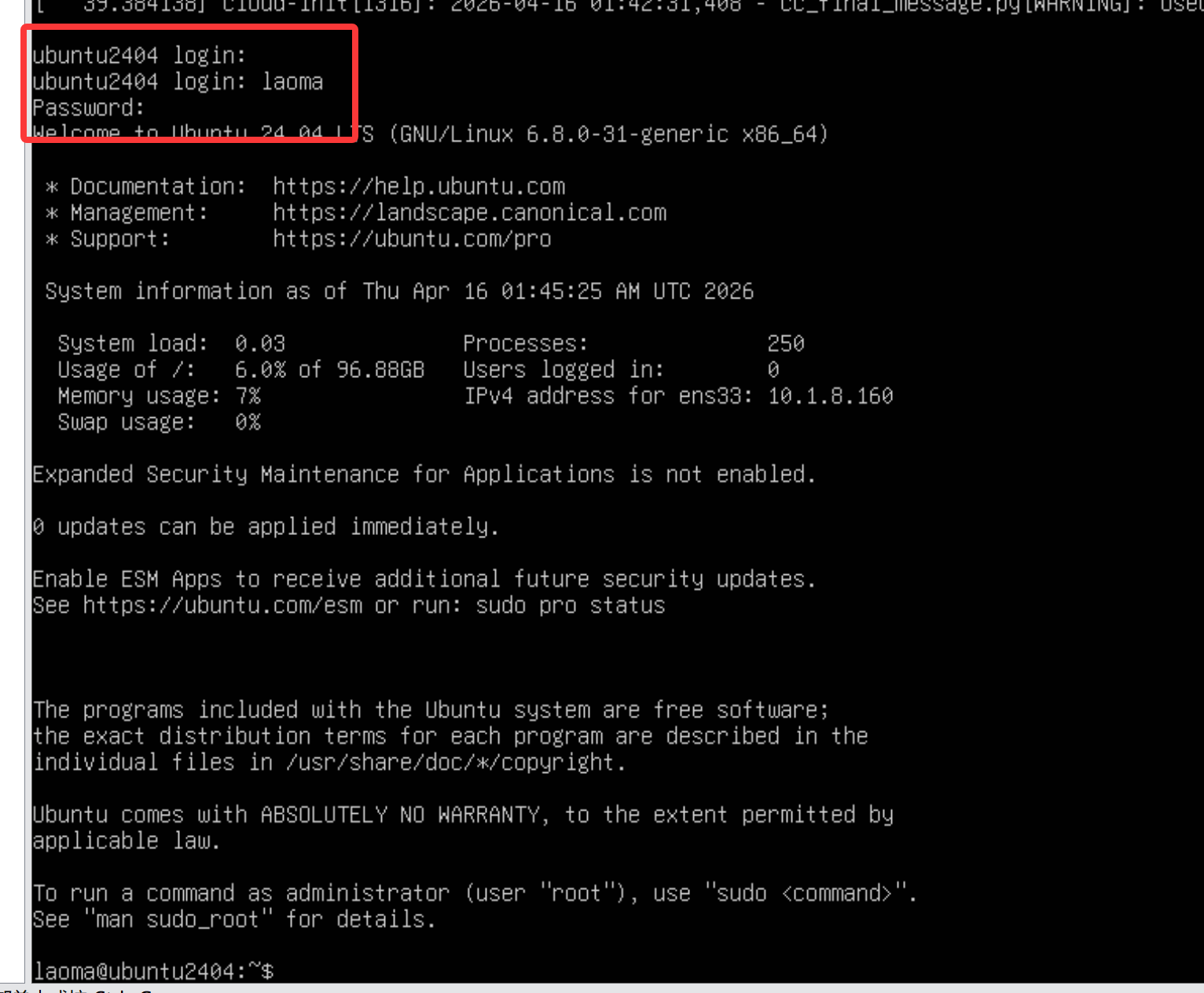
用户提权
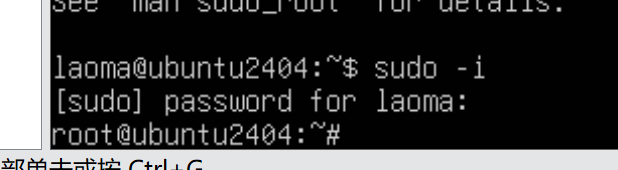
该用户使用自己的密码可以sudo提权为root操作。
配置网络
查看网络地址并使用终端工具登录,便于后续维护系统。

配置静态IP。
laoma@ubuntu2404:~$ sudo -i
[sudo] password for laoma: `123`

# 查看默认网络配置文件
root@ubuntu2404:~# cd /etc/netplan/
root@ubuntu2404:/etc/netplan# cat 50-cloud-init.yaml
# This file is generated from information provided by the datasource.  Changes
# to it will not persist across an instance reboot.  To disable cloud-init's
# network configuration capabilities, write a file
# /etc/cloud/cloud.cfg.d/99-disable-network-config.cfg with the following:
# network: {config: disabled}
network:
    ethernets:
        ens33:
            dhcp4: true
    version: 2

# 设置静态IP
root@ubuntu2404:/etc/netplan# mkdir backup
root@ubuntu2404:/etc/netplan# mv 50-cloud-init.yaml backup
root@ubuntu2404:/etc/netplan# cat > 00-ens33-static.yaml << 'EOF'
# This is the network config written by 'laoma'
network:
  ethernets:
    ens33:
      addresses:
        - 10.1.8.10/24
      routes:
        - to: default
          via: 10.1.8.2
      nameservers:
        addresses:
          - 10.1.8.2
          - 223.5.5.5
  version: 2
EOF

# 激活配置
root@ubuntu2404:/etc/netplan# chmod 600 00-ens33-static.yaml
root@ubuntu2404:/etc/netplan# netplan apply
# 激活配置的时候,终端会断开网络,使用新的IP登录即可。
配置提示符
root@ubuntu2404:~# cat >> ~/.bashrc <<'EOF'
PS1='[\[\e[91m\]\u\[\e[93m\]@\[\e[92;1m\]\h\[\e[0m\] \[\e[94m\]\W\[\e[0m\] \[\e[35m\]\t\[\e[0m\]]\[\e[93m\]\$\[\e[0m\] '
HISTTIMEFORMAT="%F %T "
EOF

root@ubuntu2404:~# source ~/.bashrc
[root@ubuntu2404 ~ 02:14:21]#
配置apt仓库
# 查看默认仓库
[root@ubuntu2404 ~ 02:14:21]# cat /etc/apt/sources.list
# Ubuntu sources have moved to /etc/apt/sources.list.d/ubuntu.sources

# 根据提示,继续追踪仓库。
[root@ubuntu2404 ~ 02:15:01]# cat /etc/apt/sources.list.d/ubuntu.sources
Types: deb
URIs: http://mirrors.huaweicloud.com/ubuntu/
Suites: noble noble-updates noble-backports
Components: main restricted universe multiverse
Signed-By: /usr/share/keyrings/ubuntu-archive-keyring.gpg

Types: deb
URIs: http://security.ubuntu.com/ubuntu/
Suites: noble-security
Components: main restricted universe multiverse
Signed-By: /usr/share/keyrings/ubuntu-archive-keyring.gpg
# 输出显示:使用的是系统安装过程中配置的huaweicloud仓库

# 删除掉第二个security仓库,因为不需要。
# 删除第6行到最后一行内容
[root@ubuntu2404 ~ 02:17:34]# sed -i '6,$d' /etc/apt/sources.list.d/ubuntu.sources
[root@ubuntu2404 ~ 02:17:51]# cat /etc/apt/sources.list.d/ubuntu.sources
Types: deb
URIs: http://mirrors.huaweicloud.com/ubuntu/
Suites: noble noble-updates noble-backports
Components: main restricted universe multiverse
Signed-By: /usr/share/keyrings/ubuntu-archive-keyring.gpg
安装基础软件包
[root@ubuntu2404 ~ 02:19:27]# apt install -y bash-completion vim open-vm-tools lrzsz unzip rsync sshpass
配置 root 密码
[root@ubuntu2404 ~ 02:21:28]# passwd root
New password:
Retype new password:
passwd: password updated successfully
配置 root 远程登录
[root@ubuntu2404 ~ 02:25:55]# sed -i '/^#PermitRootLogin/aPermitRootLogin yes' /etc/ssh/sshd_config
[root@ubuntu2404 ~ 02:26:02]# grep PermitRootLogin /etc/ssh/sshd_config
#PermitRootLogin prohibit-password
PermitRootLogin yes
# the setting of "PermitRootLogin prohibit-password".

# 重新加载ssh服务配置
[root@ubuntu2404 ~ 02:26:34]# systemctl reload ssh
设置时区和时间
# 设置时区
[root@ubuntu2404 ~ 02:36:34]# timedatectl set-timezone Asia/Shanghai
[root@ubuntu2404 ~ 10:36:55]#

# 自动对时
[root@ubuntu2404 ~ 10:36:58]# apt install -y chrony
[root@ubuntu2404 ~ 10:38:21]# vim /etc/chrony/chrony.conf
# 注释掉pool开头的行
#pool ntp.ubuntu.com        iburst maxsources 4
#pool 0.ubuntu.pool.ntp.org iburst maxsources 1
#pool 1.ubuntu.pool.ntp.org iburst maxsources 1
#pool 2.ubuntu.pool.ntp.org iburst maxsources 2
# 新增server行,与aliyun对时
server ntp.aliyun.com iburst maxsources 2

[root@ubuntu2404 ~ 10:40:05]# systemctl restart chronyd

[root@ubuntu2404 ~ 10:40:12]# chronyc sources -v

  .-- Source mode  '^' = server, '=' = peer, '#' = local clock.
 / .- Source state '*' = current best, '+' = combined, '-' = not combined,
| /             'x' = may be in error, '~' = too variable, '?' = unusable.
||                                                 .- xxxx [ yyyy ] +/- zzzz
||      Reachability register (octal) -.           |  xxxx = adjusted offset,
||      Log2(Polling interval) --.      |          |  yyyy = measured offset,
||                                \     |          |  zzzz = estimated error.
||                                 |    |           \
MS Name/IP address         Stratum Poll Reach LastRx Last sample
===============================================================================
^* 203.107.6.88                  2   6    17     9  -1709us[-2441us] +/-   66ms

[root@ubuntu2404 ~ 10:41:08]# nslookup ntp.aliyun.com | tail -3
Name:   ntp.aliyun.com
Address: 203.107.6.88
打快照
关机,打快照名称为:标准化配置,建议加上额外的描述:
1. 配置华为云仓库
2. 安装基础软件包
3. 设置root密码
4. 设置root远程登录
5. 设置系统时区和时间
管理系统网络
NetworkManager
通过NetworkManager服务管理网络。
nmcli
Usage: nmcli [OPTIONS] OBJECT { COMMAND | help }

OPTIONS
  -a, --ask                                ask for missing parameters
  -c, --colors auto|yes|no                 whether to use colors in output
  -e, --escape yes|no                      escape columns separators in values
  -f, --fields <field,...>|all|common      specify fields to output
  -g, --get-values <field,...>|all|common  shortcut for -m tabular -t -f
  -h, --help                               print this help
  -m, --mode tabular|multiline             output mode
  -o, --overview                           overview mode
  -p, --pretty                             pretty output
  -s, --show-secrets                       allow displaying passwords
  -t, --terse                              terse output
  -v, --version                            show program version
  -w, --wait <seconds>                     set timeout waiting for finishing operations

OBJECT
  g[eneral]       NetworkManager's general status and operations
  n[etworking]    overall networking control
  r[adio]         NetworkManager radio switches
  c[onnection]    NetworkManager's connections
  d[evice]        devices managed by NetworkManager
  a[gent]         NetworkManager secret agent or polkit agent
  m[onitor]       monitor NetworkManager changes
general 子命令
root@ubuntu2404:~# nmcli general help
Usage: nmcli general { COMMAND | help }

COMMAND := { status | hostname | permissions | logging }

  status

  hostname [<hostname>]

  permissions

  logging [level <log level>] [domains <log domains>]
示例
# 查看主机名
root@ubuntu2404:~# nmcli general hostname
ubuntu2404.redhat.fun

# 设置主机名
root@ubuntu2404:~# nmcli general hostname ubuntu2404.laoma.fun
root@ubuntu2404:~# hostname
ubuntu2404.laoma.fun
root@ubuntu2404:~# cat /etc/hostname
ubuntu2404.laoma.fun
networking 子命令
Usage: nmcli networking { COMMAND | help }

COMMAND := { [ on | off | connectivity ] }

  on

  off

  connectivity [check]

root@ubuntu2404:~# nmcli networking connectivity
full
停用前后对比
# 停用networking
root@ubuntu2404:~# nmcli networking off

# 启用networking
root@ubuntu2404:~# nmcli networking on
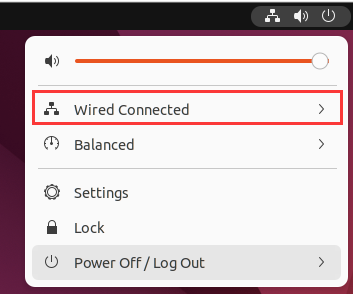

网络停用后,将无法与其他计算机通信。
device 子命令
root@ubuntu2404:~# nmcli device help
Usage: nmcli device { COMMAND | help }

COMMAND := { status | show | set | connect | reapply | modify | disconnect | delete | monitor | wifi | lldp }

  status

  show [<ifname>]

  set [ifname] <ifname> [autoconnect yes|no] [managed yes|no]

  connect <ifname>

  reapply <ifname>

  modify <ifname> ([+|-]<setting>.<property> <value>)+

  disconnect <ifname> ...

  delete <ifname> ...

  monitor <ifname> ...

  wifi [list [ifname <ifname>] [bssid <BSSID>] [--rescan yes|no|auto]]

  wifi connect <(B)SSID> [password <password>] [wep-key-type key|phrase] [ifname <ifname>]
                         [bssid <BSSID>] [name <name>] [private yes|no] [hidden yes|no]

  wifi hotspot [ifname <ifname>] [con-name <name>] [ssid <SSID>] [band a|bg] [channel <channel>] [password <password>]

  wifi rescan [ifname <ifname>] [[ssid <SSID to scan>] ...]

  wifi show-password [ifname <ifname>]

  lldp [list [ifname <ifname>]]
示例
connection 子命令
root@ubuntu2404:~# nmcli connection help
Usage: nmcli connection { COMMAND | help }

COMMAND := { show | up | down | add | modify | clone | edit | delete | monitor | reload | load | import | export }

  show [--active] [--order <order spec>]
  show [--active] [id | uuid | path | apath] <ID> ...

  up [[id | uuid | path] <ID>] [ifname <ifname>] [ap <BSSID>] [passwd-file <file with passwords>]

  down [id | uuid | path | apath] <ID> ...

  add COMMON_OPTIONS TYPE_SPECIFIC_OPTIONS SLAVE_OPTIONS IP_OPTIONS [-- ([+|-]<setting>.<property> <value>)+]

  modify [--temporary] [id | uuid | path] <ID> ([+|-]<setting>.<property> <value>)+

  clone [--temporary] [id | uuid | path ] <ID> <new name>

  edit [id | uuid | path] <ID>
  edit [type <new_con_type>] [con-name <new_con_name>]

  delete [id | uuid | path] <ID>

  monitor [id | uuid | path] <ID> ...

  reload

  load <filename> [ <filename>... ]

  import [--temporary] type <type> file <file to import>

  export [id | uuid | path] <ID> [<output file>]
示例
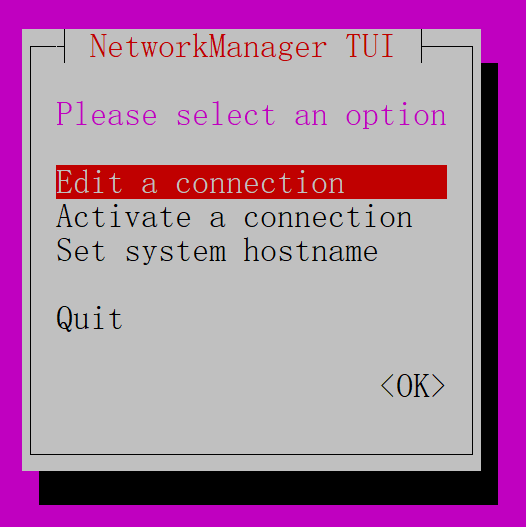
nmtui
netplan
介绍
Netplan是Canonical(Ubuntu系统的开发和维护组织)开发的实用程序,能在Linux系统上轻松配置网络。要配置网络接口,只需创建所需网络接口的YAML描述,然后Netplan将为所选的渲染器工具生成所有必需的配置。
您可以在 /usr/share/doc/netplan/examples 中找到Netplan网络配置文件。Netplan当前支持以下后端渲染器,例如NetworkManager和Systemd-networkd。
netplan只是NetworkManager和Systemd-networkd前端工具。
root@ubuntu2404:~# ls /usr/share/doc/netplan/examples
bonding_router.yaml               openvswitch.yaml
bonding.yaml                      route_metric.yaml
bridge_vlan.yaml                  source_routing.yaml
bridge.yaml                       sriov_vlan.yaml
dhcp_wired8021x.yaml              sriov.yaml
dhcp.yaml                         static_multiaddress.yaml
direct_connect_gateway_ipv6.yaml  static_singlenic_multiip_multigateway.yaml
direct_connect_gateway.yaml       static.yaml
ipv6_tunnel.yaml                  vlan.yaml
loopback_interface.yaml           windows_dhcp_server.yaml
modem.yaml                        wireguard.yaml
network_manager.yaml              wireless.yaml
offload.yaml                      wpa_enterprise.yaml
Netplan定义文件位于/etc/netplan目录,例如/etc/netplan/00-ens32.yaml。
示例
示例1:定义一个静态配置ip
root@ubuntu2404:/usr/share/doc/netplan/examples# cat static.yaml
network:
  ethernets:
    ens33:
      dhcp4: no
      addresses:
        - 10.1.8.88/24
      routes:
        - to: default
          via: 10.1.8.2
      nameservers:
        addresses:
          - 10.1.8.2
          - 223.5.5.5
  version: 2
示例2:定义一个动态获取ip
root@ubuntu2404:/usr/share/doc/netplan/examples# cat dhcp.yaml
network:
  version: 2
  renderer: networkd
  ethernets:
    enp3s0:
      dhcp4: true
命令
应用上面定义的配置文件:
root@ubuntu2404:~# netplan apply

# 获取当前配置信息
root@ubuntu2404:~# netplan get
network:
  version: 2
  ethernets:
    ens33:
      addresses:
      - "10.1.8.88/24"
      nameservers:
        addresses:
        - 10.1.8.2
        - 223.5.5.5
      dhcp4: false
      routes:
      - to: "default"
        via: "10.1.8.2"
配置主机名
root@ubuntu2404:~# hostnamectl -h
hostnamectl [OPTIONS...] COMMAND ...

Query or change system hostname.

Commands:
  status                 Show current hostname settings
  hostname [NAME]        Get/set system hostname
  icon-name [NAME]       Get/set icon name for host
  chassis [NAME]         Get/set chassis type for host
  deployment [NAME]      Get/set deployment environment for host
  location [NAME]        Get/set location for host

Options:
  -h --help              Show this help
     --version           Show package version
     --no-ask-password   Do not prompt for password
  -H --host=[USER@]HOST  Operate on remote host
  -M --machine=CONTAINER Operate on local container
     --transient         Only set transient hostname
     --static            Only set static hostname
     --pretty            Only set pretty hostname
     --json=pretty|short|off
                         Generate JSON output

See the hostnamectl(1) man page for details.
名称解析
配置文件 /etc/nsswitch.conf 中 hosts 开头行 控制系统名称服务的查询顺序。
root@ubuntu:~# grep host /etc/nsswitch.conf
hosts:          files dns
files 和 dns 是 名称服务开关(NSS) 的核心模块,分别对应两种完全不同的域名解析方式,遵循先 files 后 dns的查询优先级。
files 模块
files 是 NSS 中用于读取本地静态配置文件的模块,核心对应 /etc/hosts 文件。
核心特点
-
优先级最高:只要
files模块能在/etc/hosts中找到匹配的域名→IP映射,就会直接返回结果,不会再执行后续的dns模块查询。 -
无网络依赖:解析过程完全在本地完成,不需要联网、不需要DNS服务器,速度极快。
-
手动配置:内容需要人工编辑
/etc/hosts,格式为IP地址 域名 [别名],例如:
bash
   127.0.0.1   localhost
   192.168.1.10 myserver.local  # 自定义映射
- 适用场景:
- 本地测试(比如把
test.com映射到本机127.0.0.1); - 局域网内固定IP的设备(避免依赖DNS,提升访问速度);
- 屏蔽恶意域名(把广告/恶意域名映射到
0.0.0.0)。
验证
假设 /etc/hosts 中添加了 1.2.3.4 example.com,执行 ping example.com 时,会直接访问 1.2.3.4,而非 example.com 的真实IP——这就是 files 模块优先生效的结果。
dns 模块
dns 是 NSS 中用于通过网络DNS服务器解析域名的模块,核心对接系统的 DNS 服务(systemd-resolved)。
核心特点
-
仅在
files未匹配时执行:只有/etc/hosts中找不到目标域名,才会触发dns模块的查询。 -
依赖网络和DNS服务器:需要联网,并向配置好的DNS服务器(链路级/全局/Fallback DNS)发送解析请求,等待返回结果。
-
动态获取:解析结果来自公共/私有DNS服务器,无需手动配置(除非自定义DNS),适配互联网域名解析。
-
对接系统DNS服务:
dns模块不会直接访问DNS服务器,而是调用系统的systemd-resolved服务(底层通过/run/systemd/resolve/stub-resolv.conf指向本地DNS缓存服务),流程是:
应用请求解析 → NSS的dns模块 → systemd-resolved → 配置的DNS服务器 → 返回结果
验证
如果 /etc/hosts 中没有 baidu.com 的映射,执行 resolvectl query baidu.com 时,系统会通过配置的DNS服务器(如8.8.8.8)查询 baidu.com 的真实IP,这就是 dns 模块的作用。
files vs dns 对比
| 特性 | files 模块 | dns 模块 |
|---|---|---|
| 对应文件 | /etc/hosts(静态) |
依赖 systemd-resolved(动态) |
| 网络依赖 | 无 | 必须联网 |
| 解析速度 | 极快(本地读取) | 较慢(网络请求) |
| 适用域名 | 本地/局域网自定义域名 | 互联网公共域名 |
| 优先级 | 更高(先执行) | 更低(后执行) |
| 可维护性 | 手动编辑,适合少量映射 | 自动解析,适合大量域名systemd-resolved 解析dns顺序 |
systemd-resolved 服务
systemd-resolved 是 DNS 解析的核心服务,其内部的 DNS 查询顺序是分层级、有明确优先级。当 nsswitch.conf 触发 dns 模块后会执行这套逻辑。
systemd-resolved 的 DNS 核心顺序:本地缓存 → 链路级 DNS → 全局 DNS → Fallback DNS,层级越高优先级越高。
DNS 解析顺序
systemd-resolved 会严格按照以下优先级尝试解析域名,只要某一级返回有效结果,就立即终止查询:
1. 本地 DNS 缓存
- 作用:
systemd-resolved会缓存已解析过的域名结果(默认缓存时间遵循 DNS 服务器返回的 TTL),避免重复网络请求。 - 特点:查询速度最快,完全本地操作;
常用缓存操作命令:
- 清空缓存:
resolvectl flush-caches - 查看缓存内容:
resolvectl show-cache - 查看缓存统计信息:
resolvectl statistics
2. 链路级 DNS 服务器
-
来源:当前网卡通过 DHCP 自动获取、或通过 Netplan 手动配置的 DNS 服务器(网卡专属)。
-
优先级:高于全局 DNS,是
systemd-resolved最核心的 DNS 配置来源。 -
示例:若你的网卡
ens33通过 Netplan 配置了nameservers.addresses: [223.5.5.5, 223.6.6.6],则优先使用这两个 DNS。 -
查看方式:
bash
  root@ubuntu:~# resolvectl status ens32  # 替换为你的网卡名,查看该网卡的DNS配置
  Link 2 (ens32)
      Current Scopes: DNS
           Protocols: +DefaultRoute -LLMNR -mDNS -DNSOverTLS DNSSEC=no/unsupported
  Current DNS Server: 10.1.8.2
         DNS Servers: 10.1.8.2 223.5.5.5
3. 全局 DNS 服务器
-
来源:
/etc/systemd/resolved.conf中DNS=字段配置的全局 DNS(对所有网卡生效)。 -
触发条件:仅当链路级 DNS 无配置、或链路级 DNS 解析失败时,才会使用全局 DNS。
-
示例配置(
/etc/systemd/resolved.conf):
ini
  [Resolve]
  DNS=223.5.5.5 223.6.6.6  # 阿里 DNS
  # FallbackDNS=1.1.1.1  # 备用DNS(下一级)
4. Fallback DNS 服务器
- 来源:
systemd-resolved内置的公共 DNS(若未手动配置FallbackDNS=,默认包含:208.67.222.222、208.67.220.220、8.8.8.8、8.8.4.4 等)。 - 触发条件:链路级和全局 DNS 均失效时,作为最后兜底方案。
5. DNSSEC 降级/失败处理(可选)
- 若启用了
DNSSEC(resolved.conf中DNSSEC=非no),解析失败时会根据配置尝试降级(如allow-downgrade),但不会改变上述核心顺序。
补充规则
同一层级(如链路级)配置多个 DNS 服务器时,systemd-resolved 会采用 轮询+故障重试 策略:
- 优先尝试第一个 DNS 服务器;
- 超时/失败则尝试第二个,以此类推;
- 标记故障 DNS 服务器,短时间内不再优先使用。
验证解析实操命令
1. 查看当前 DNS 配置层级
root@ubuntu:~# resolvectl status
# 输出中会区分「Link」(链路级)、「Global」(全局)DNS
示例:
Global
         Protocols: -LLMNR -mDNS -DNSOverTLS DNSSEC=no/unsupported
  resolv.conf mode: stub

Link 2 (ens32)
    Current Scopes: DNS
         Protocols: +DefaultRoute -LLMNR -mDNS -DNSOverTLS DNSSEC=no/unsupported
Current DNS Server: 10.1.8.2
       DNS Servers: 10.1.8.2 223.5.5.5
2. 跟踪使用了哪个级别 DNS
root@ubuntu:~# resolvectl query laoma.cloud
laoma.cloud: 8.159.134.206                     -- link: ens32

-- Information acquired via protocol DNS in 150.9ms.
-- Data is authenticated: no; Data was acquired via local or encrypted transport: no
-- Data from: network
补充
- Netplan 配置的 DNS 并不会直接「存储」在某个固定的文本文件里,而是通过 Netplan 应用后,传递给
systemd-networkd和systemd-resolved这两个核心服务,最终以运行时配置的形式存在(链路级 DNS 配置)。 /etc/resolv.conf是软链接(指向/run/systemd/resolve/stub-resolv.conf),由systemd-resolved自动生成,其中的nameserver固定为127.0.0.53(本地 DNS 缓存服务),不会直接显示 Netplan 配置的公网 DNS。
管理系统软件包
管理软件包 apt
apt 和 其他apt命令的渊源
Debian是很多Linux发行版本的母版,比如Ubuntu,Linux Mint, elementary OS等。它有一个稳健的软件包系统,每一个组件和硬件程序构建成软件包,并安装到你的系统中。Debian使用一个名叫Advanced Packaging Tool (APT)的工具集,来管理这个软件包系统。
请注意:请不要将APT工具集与apt命令混淆,他们并不相同。
有很多工具可以与APT进行交互,允许你去安装、卸载和管理基于Linux发行版本的包。apt-get和apt-cache就是这样的命令行工具,且广泛使用。
引入apt命令集就是为了解决这个问题。apt由一些来自apt-get和apt-cache且广泛使用的特性组成,同时搁置了那些令人费解且少用的特性。它也能管理apt.conf文件。
使用apt,你不必在apt-get和apt-cache命令间来回切换。apt更加的结构化,给你提供必要选项,来管理软件包。
命令区别
虽然 apt 与 apt-get 有一些类似的命令选项,但它并不能完全向下兼容 apt-get 命令。也就是说,可以用 apt 替换部分 apt-get 系列命令,但不是全部。
| apt 命令 | 取代的命令 | 命令的功能 |
|---|---|---|
| apt install | apt-get install | 安装软件包 |
| apt remove | apt-get remove | 移除软件包 |
| apt purge | apt-get purge | 移除软件包及配置文件 |
| apt update | apt-get update | 刷新存储库索引 |
| apt upgrade | apt-get upgrade | 升级所有可升级的软件包 |
| apt autoremove | apt-get autoremove | 自动删除不需要的包 |
| apt full-upgrade | apt-get dist-upgrade | 在升级软件包时自动处理依赖关系 |
| apt search | apt-cache search | 搜索应用程序 |
| apt show | apt-cache show | 显示装细节 |
当然,apt 还有一些自己的命令:
| 新的apt命令 | 命令的功能 |
|---|---|
| apt list | 列出包含条件的包(已安装,可升级等) |
| apt edit-sources | 编辑源列表 |
==需要大家注意的是:==apt 命令也还在不断发展, 因此,你可能会在将来的版本中看到新的选项。
我应该使用apt还是apt-get?
既然两个命令都有用,那么我该使用 apt 还是 apt-get 呢?作为一个常规 Linux 用户,系统极客建议大家尽快适应并开始首先使用 apt。不仅因为广大 Linux 发行商都在推荐 apt,更主要的还是它提供了 Linux 包管理的必要选项。
最重要的是,apt 命令选项更少更易记,因此也更易用,所以没理由继续坚持 apt-get。
apt
子命令
root@ubuntu2404:~# apt  --<tab><tab>
autoclean     depends       install       reinstall     update
autopurge     dist-upgrade  list          remove        upgrade
autoremove    download      moo           search
build-dep     edit-sources  policy        show
changelog     full-upgrade  purge         showsrc
clean         help          rdepends      source
帮助信息
root@ubuntu2404:~# apt --help
apt 2.4.5 (amd64)
Usage: apt [options] command

apt is a commandline package manager and provides commands for
searching and managing as well as querying information about packages.
It provides the same functionality as the specialized APT tools,
like apt-get and apt-cache, but enables options more suitable for
interactive use by default.

Most used commands:
  list - list packages based on package names
  search - search in package descriptions
  show - show package details
  install - install packages
  reinstall - reinstall packages
  remove - remove packages
  autoremove - Remove automatically all unused packages
  update - update list of available packages
  upgrade - upgrade the system by installing/upgrading packages
  full-upgrade - upgrade the system by removing/installing/upgrading packages
  edit-sources - edit the source information file
  satisfy - satisfy dependency strings

See apt(8) for more information about the available commands.
Configuration options and syntax is detailed in apt.conf(5).
Information about how to configure sources can be found in sources.list(5).
Package and version choices can be expressed via apt_preferences(5).
Security details are available in apt-secure(8).
                                        This APT has Super Cow Powers.
update 子命令
update - update list of available packages
从软件仓库中获取最新软件清单。
==提醒:==这是执行大部分apt命令前要执行的命令。
root@ubuntu2404:~# apt update
list 子命令
list - list packages based on package names
查看软件仓库中软件清单。
# 可用于查看的选项
root@ubuntu2404:~# apt list --<tab><tab>
--all-versions      --manual-installed  --upgradable
--installed         --target-release    --verbose

# 查看软件包清单
root@ubuntu2404:~# apt list

WARNING: apt does not have a stable CLI interface. Use with caution in scripts.

Listing...
0ad-data-common/jammy,jammy 0.0.25b-1 all
0ad-data/jammy,jammy 0.0.25b-1 all
0ad/jammy 0.0.25b-2 amd64
0install-core/jammy 2.16-2 amd64
......

# 查看特定软件包
root@ubuntu2404:~# apt list openssh-server
Listing... Done
openssh-server/jammy-updates,now 1:8.9p1-3ubuntu0.1 amd64 [installed]
openssh-server/jammy-updates 1:8.9p1-3ubuntu0.1 i386

# 查看特定软件包所有版本
root@ubuntu2404:~# apt list openssh-server --all-versions
Listing... Done
openssh-server/jammy-updates,now 1:8.9p1-3ubuntu0.1 amd64 [installed]
openssh-server/jammy 1:8.9p1-3 amd64

openssh-server/jammy-updates 1:8.9p1-3ubuntu0.1 i386
openssh-server/jammy 1:8.9p1-3 i386
show 子命令
show - show package details
查看仓库中软件包详细信息。
root@ubuntu2404:~# apt show openssh-server
# 类似 dpkg -s openssh-server
search 子命令
search - search in package descriptions
root@ubuntu2404:~# apt search --<tab><tab>
--full        --names-only

root@ubuntu2404:~# apt search --names-only apache2
install 子命令
install - install packages
从仓库中获取软件包并安装。
root@ubuntu2404:~# apt install --<tab><tab>
--allow-change-held-packages   --fix-broken                 --purge
--allow-downgrades             --fix-missing                --reinstall
--allow-insecure-repositories  --fix-policy                 --remove
--allow-remove-essential       --force-yes                  --show-progress
--allow-unauthenticated        --ignore-hold                --show-upgraded
--arch-only                    --ignore-missing             --simulate
--assume-no                    --install-recommends         --solver
--assume-yes                   --install-suggests           --target-release
--auto-remove                  --no-install-recommends      --trivial-only
--download                     --no-install-suggests        --upgrade
--download-only                --only-upgrade               --verbose-versions
--dry-run                      --print-uris

root@ubuntu2404:~# apt install apache2 -y

# 安装特定版本
root@ubuntu2404:~# apt install apache2=2.4.52-1ubuntu4.5
reinstall 子命令
reinstall - reinstall packages
从仓库中获取软件包并再次安装(系统中已安装)。
root@ubuntu2404:~# apt reinstall apache2 -y
remove 子命令
remove - remove packages
卸载系统中已安装软件包。
root@ubuntu2404:~# apt remove apache2 -y
Reading package lists... Done
Building dependency tree... Done
Reading state information... Done
The following packages were automatically installed and are no longer required:
  apache2-bin apache2-data apache2-utils libapr1 libaprutil1 libaprutil1-dbd-sqlite3
  libaprutil1-ldap
Use 'apt autoremove' to remove them.
The following packages will be REMOVED:
  apache2
0 upgraded, 0 newly installed, 1 to remove and 282 not upgraded.
After this operation, 546 kB disk space will be freed.
(Reading database ... 202598 files and directories currently installed.)
Removing apache2 (2.4.52-1ubuntu4.5) ...
Processing triggers for man-db (2.10.2-1) ...
Processing triggers for ufw (0.36.1-4build1) ...
autoremove 子命令
autoremove - Remove automatically all unused packages
root@ubuntu2404:~# apt autoremove -y
upgrade 子命令
upgrade - upgrade the system by installing/upgrading packages
# 升级系统所有可更新软件包
root@ubuntu2404:~# apt upgrade

# 升级系统中特定软件包
root@ubuntu2404:~# apt upgrade openssh-server -y
full-upgrade 子命令
full-upgrade - upgrade the system by removing/installing/upgrading packages
# 升级系统所有可更新软件包
root@ubuntu2404:~# apt full-upgrade

# 升级系统中特定软件包
root@ubuntu2404:~# apt full-upgrade openssh-server -y
download 子命令
download - download packages
root@ubuntu2404:~# apt download openssh-server
root@ubuntu2404:~# ls
openssh-server_1%3a8.9p1-3ubuntu0.1_amd64.deb
edit-sources 子命令
edit-sources - edit the source information file
root@ubuntu2404:~# export EDITOR=vim
root@ubuntu2404:~# apt edit-sources
# 使用vim编辑文件 /etc/apt/sources.list
子命令
e - packages
apt-file
作用:查找软件包中文件。
apt-file is a command line tool for searching files in packages for the APT package management system.
帮助信息
root@ubuntu2404:~# apt-file --help

apt-file [options] action [pattern]
apt-file [options] -f action <file>
apt-file [options] -D action <debfile>

Pattern options:
================

    --fixed-string     -F               Do not expand pattern
    --from-deb         -D               Use file list of .deb package(s) as
                                        patterns; implies -F
    --from-file        -f               Read patterns from file(s), one per line
                                        (use '-' for stdin)
    --ignore-case      -i               Ignore case distinctions
    --regexp           -x               pattern is a regular expression
    --substring-match                   pattern is a substring (no glob/regex)


Search filter options:
======================

    --architecture     -a  <arch>       Use specific architecture [L]
    --index-names      -I  <names>      Only search indices listed in <names> [L]
    --filter-suites        <suites>     Only search indices for the listed <suites> [L]
                                        (E.g. "unstable")
    --filter-origins       <origins>    Only search indices from <origins> [L]
                                        (E.g. "Debian")

Other options:
==============

    --config           -c <file>        Parse the given APT config file [R]
    --option           -o <A::B>=<V>    Set the APT config option A::B to "V" [R]
    --package-only     -l               Only display packages name
    --verbose          -v               run in verbose mode [R]
    --help             -h               Show this help.
                       --               End of options (necessary if pattern
                                        starts with a '-')

[L]: Takes a comma-separated list of values.
[R]: The option can be used repeatedly

Action:
    list|show          <pattern>        List files in packages
    list-indices                        List indices configured in APT.
    search|find        <pattern>        Search files in packages
    update                              Fetch Contents files from apt-sources.
示例
# 更新apt仓库中文件清单缓存
root@ubuntu2404:~# apt-file update

# 仓库中某个软件包的文件清单
root@ubuntu2404:~# apt-file list openssh-server
openssh-server: /etc/default/ssh
openssh-server: /etc/init.d/ssh
openssh-server: /etc/pam.d/sshd
openssh-server: /etc/ssh/moduli
openssh-server: /etc/ufw/applications.d/openssh-server
openssh-server: /lib/systemd/system/rescue-ssh.target
... ...

# 使用正则表达式查询ifconfig工具由哪个软件包提供
root@ubuntu2404:~# apt-file -x search '.*bin/ifconfig$'
net-tools: /sbin/ifconfig
apt-get
参考apt命令即可。
root@ubuntu2404:~# apt-get --help
apt 2.4.5 (amd64)
Usage: apt-get [options] command
       apt-get [options] install|remove pkg1 [pkg2 ...]
       apt-get [options] source pkg1 [pkg2 ...]

apt-get is a command line interface for retrieval of packages
and information about them from authenticated sources and
for installation, upgrade and removal of packages together
with their dependencies.

Most used commands:
  update - Retrieve new lists of packages
  upgrade - Perform an upgrade
  install - Install new packages (pkg is libc6 not libc6.deb)
  reinstall - Reinstall packages (pkg is libc6 not libc6.deb)
  remove - Remove packages
  purge - Remove packages and config files
  autoremove - Remove automatically all unused packages
  dist-upgrade - Distribution upgrade, see apt-get(8)
  dselect-upgrade - Follow dselect selections
  build-dep - Configure build-dependencies for source packages
  satisfy - Satisfy dependency strings
  clean - Erase downloaded archive files
  autoclean - Erase old downloaded archive files
  check - Verify that there are no broken dependencies
  source - Download source archives
  download - Download the binary package into the current directory
  changelog - Download and display the changelog for the given package

See apt-get(8) for more information about the available commands.
Configuration options and syntax is detailed in apt.conf(5).
Information about how to configure sources can be found in sources.list(5).
Package and version choices can be expressed via apt_preferences(5).
Security details are available in apt-secure(8).
apt-cache
参考apt命令即可。
root@ubuntu2404:~# apt-cache --help
apt 2.4.5 (amd64)
Usage: apt-cache [options] command
       apt-cache [options] show pkg1 [pkg2 ...]

apt-cache queries and displays available information about installed
and installable packages. It works exclusively on the data acquired
into the local cache via the 'update' command of e.g. apt-get. The
displayed information may therefore be outdated if the last update was
too long ago, but in exchange apt-cache works independently of the
availability of the configured sources (e.g. offline).

Most used commands:
  showsrc - Show source records
  search - Search the package list for a regex pattern
  depends - Show raw dependency information for a package
  rdepends - Show reverse dependency information for a package
  show - Show a readable record for the package
  pkgnames - List the names of all packages in the system
  policy - Show policy settings

See apt-cache(8) for more information about the available commands.
Configuration options and syntax is detailed in apt.conf(5).
Information about how to configure sources can be found in sources.list(5).
Package and version choices can be expressed via apt_preferences(5).
Security details are available in apt-secure(8).
apt-key
作用:管理apt仓库key。
root@ubuntu2404:~# apt-key
Usage: apt-key [--keyring file] [command] [arguments]

Manage apt's list of trusted keys

  apt-key add <file>          - add the key contained in <file> ('-' for stdin)
  apt-key del <keyid>         - remove the key <keyid>
  apt-key export <keyid>      - output the key <keyid>
  apt-key exportall           - output all trusted keys
  apt-key update              - update keys using the keyring package
  apt-key net-update          - update keys using the network
  apt-key list                - list keys
  apt-key finger              - list fingerprints
  apt-key adv                 - pass advanced options to gpg (download key)

If no specific keyring file is given the command applies to all keyring files.
管理软件存储库
软件存储库格式
每行记录格式:
档案类型 镜像url 版本代号 软件包分类
示例:
deb http://mirrors.aliyun.com/ubuntu focal main restricted
deb http://mirrors.aliyun.com/ubuntu focal universe
deb http://mirrors.aliyun.com/ubuntu focal multiverse
deb http://mirrors.aliyun.com/ubuntu focal-updates main restricted
deb http://mirrors.aliyun.com/ubuntu focal-updates universe
deb http://mirrors.aliyun.com/ubuntu focal-updates multiverse
deb http://mirrors.aliyun.com/ubuntu focal-backports main restricted universe multiverse
deb http://mirrors.aliyun.com/ubuntu focal-security main restricted
deb http://mirrors.aliyun.com/ubuntu focal-security universe
deb http://mirrors.aliyun.com/ubuntu focal-security multiverse
deb https://mirrors.aliyun.com/kubernetes/apt/ kubernetes-xenial main
deb [arch=amd64] https://mirrors.aliyun.com/docker-ce/linux/ubuntu focal stable
档案类型
-
deb:档案类型为二进制预编译软件包,一般我们所用的档案类型。
-
deb-src:软件包的源代码。
简言之,一般我们只想要安装该软件而不想要去重新编译它时,就在这一栏填入deb,如果你想取得某软件的原始码(sources code),就得加入deb-src,当然也可以两行都写。
镜像url
镜像url指的就是软件套件来源位置。当执行apt指令时,就会到这些位置去搜寻软件数据库。位置可以是file、cdrom、http、ftp、copy、rsh、ssh等,用的最多的是http/https/ftp。
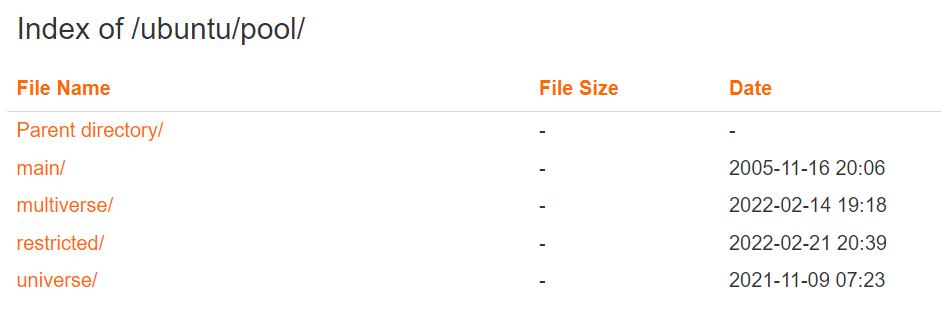
以阿里镜像为例,在浏览器打开出现以如下内容:
http://mirrors.aliyun.com/ubuntu/
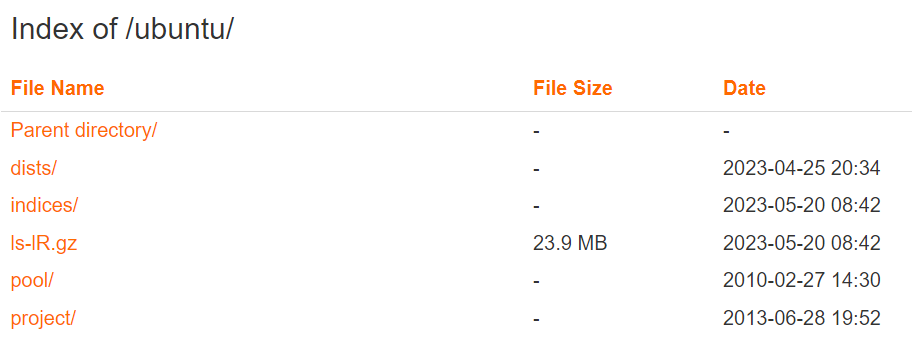
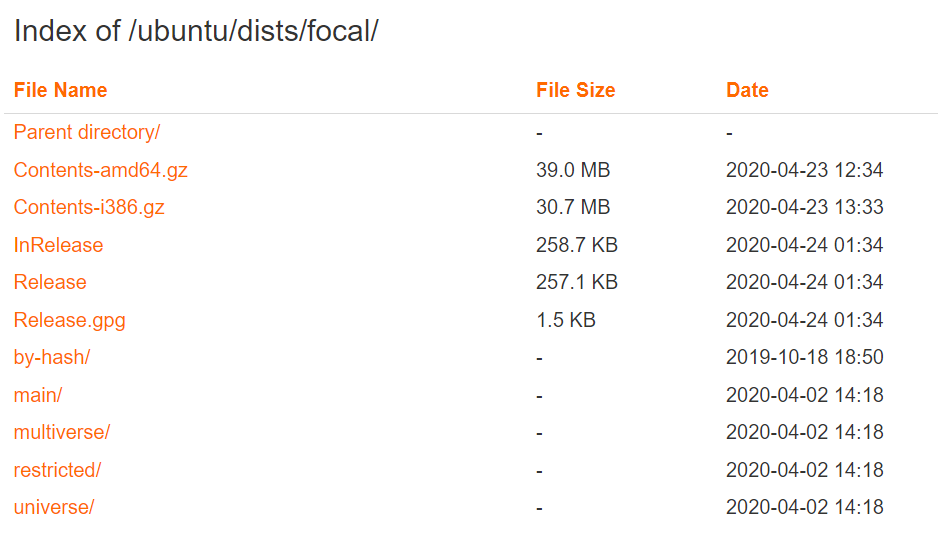
每一个源目录下都应该至少包含dists和pool两个目录,否则就是无效的源。
- /dists/ 目录包含"发行版"(distributions), 此处是获得 Debian 发布版本(releases)和已发布版本(pre-releases)的软件包的正规途径. 有些旧软件包及 packages.gz 文件仍在里面.
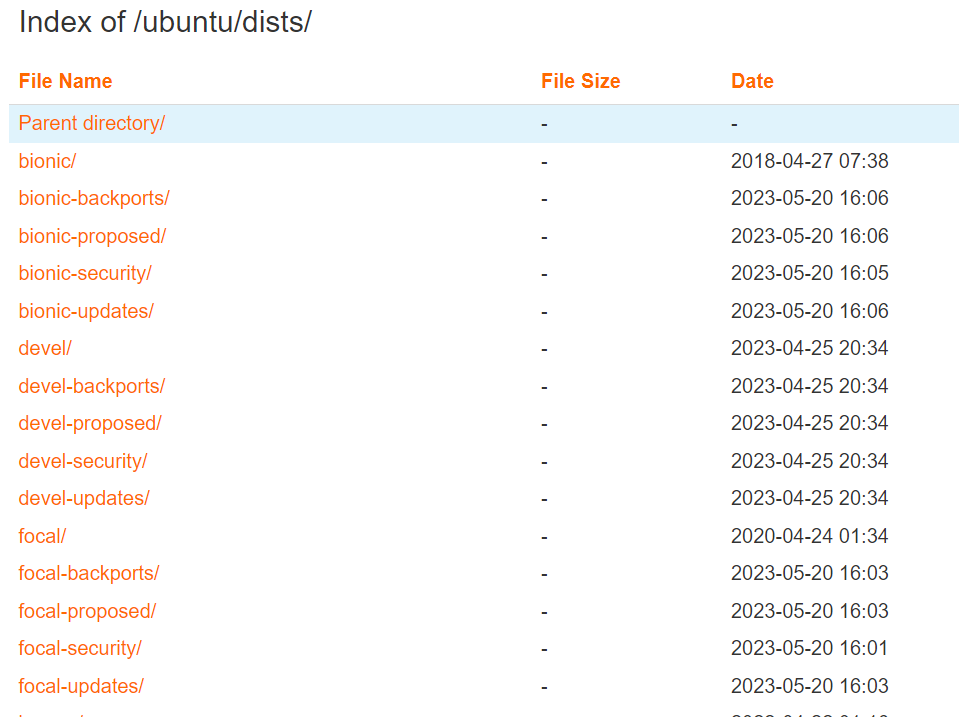
- /pool/ 目录为软件包的物理地址。软件包均放进一个巨大的 "池子(pool)", 按照源码包名称分类存放. 为了方便管理, pool 目录下按属性再分类, 分类下面再按源码包名称的首字母归档. 这些目录包含的文件有: 运行于各种系统架构的二进制软件包, 生成这些二进制软件包的源码包.
-
/indices/:维护人员文件和重载文件.
-
/project/:大部分为开发人员的资源, 如:project/experimental/,本目录包含了处于开发中的软件包和工具, 它们均处于 alpha 测试阶段.
版本代号
发行版的具体代号,如ubuntu 20.04是focal,Ubuntu18.04是bionic,16.04是xenial等。另外,在发行版后还可能有进一步的指定,如xenial-updates等
软件包分类
-
main: 官方支持的自由软件。
-
restricted: 官方支持的非完全自由的软件。
-
universe: 社区维护的自由软件。
-
multiverse: 非自由软件。
配置软件存储库
配置文件
- /etc/apt/sources.list
- /etc/apt/sources.list.d/*.list
配置过程
# 1. 复制源文件备份,以防万一
laoma@ubuntu1804:~$ sudo cp /etc/apt/sources.list /etc/apt/sources.list.bak

# 2. 查看新版本信息。Ubuntu18.04版之前的任一版更改apt源为国内源方法内容大同小异,每一版内容不同的地方就是版本号。
laoma@ubuntu1804:~$ lsb_release  -c
Codename: bionic

# 3. 编辑源列表文件
laoma@ubuntu1804:~$ sudo vi /etc/apt/sources.list
deb http://mirrors.aliyun.com/ubuntu/ bionic main restricted universe multiverse
deb-src http://mirrors.aliyun.com/ubuntu/ bionic main restricted universe multiverse
deb http://mirrors.aliyun.com/ubuntu/ bionic-security main restricted universe multiverse
deb-src http://mirrors.aliyun.com/ubuntu/ bionic-security main restricted universe multiverse
deb http://mirrors.aliyun.com/ubuntu/ bionic-updates main restricted universe multiverse
deb-src http://mirrors.aliyun.com/ubuntu/ bionic-updates main restricted universe multiverse
deb http://mirrors.aliyun.com/ubuntu/ bionic-proposed main restricted universe multiverse
deb-src http://mirrors.aliyun.com/ubuntu/ bionic-proposed main restricted universe multiverse
deb http://mirrors.aliyun.com/ubuntu/ bionic-backports main restricted universe multiverse
deb-src http://mirrors.aliyun.com/ubuntu/ bionic-backports main restricted universe multiverse

# 4. 执行以下命令获取最新软件列表
laoma@ubuntu1804:~$ sudo apt-get update
Containerd 容器技术
Containerd 概述
Containerd 概述
很早之前的 Docker Engine 中就有了 containerd,只不过现在是将 containerd 从 Docker Engine 里分离出来,作为一个独立的开源项目,目标是提供一个更加开放、稳定的容器运行基础设施。分离出来的 containerd 将具有更多的功能,涵盖整个容器运行时管理的所有需求,提供更强大的支持。
containerd 是一个工业级标准的容器运行时,它强调简单性、健壮性和可移植性,containerd 可以负责干下面这些事情:
- 管理容器的生命周期(从创建容器到销毁容器)
- 拉取/推送容器镜像
- 存储管理(管理镜像及容器数据的存储)
- 调用 runc 运行容器(与 runc 等容器运行时交互)
- 管理容器网络接口及网络
学习 Containerd 必要性
在Kubernetes 1.24版本中,Dockershim组件正式从kubelet中移除。从Kubernetes 1.24开始,默认将无法使用Docker Engine作为容器运行。
从本质上讲,dockershim 最初的目的是作为一种临时解决方案,允许流行的 Docker Engine 容器运行时将 OCI 调用转换为 Kubernetes 自己的容器运行时接口 (CRI) 中的 Docker 调用。随着时间的推移,dockershim 在 Kubernetes 部署中变得根深蒂固,减慢部署速度并给维护者带来负担,所以它不得不被移除。
那么这是否就意味着 Kubernetes 不再支持 Docker 了呢?
当然不是的,这只是废弃了内置的 dockershim 功能而已,Docker 和其他容器运行时将一视同仁,不会单独对待内置支持,如果我们还想直接使用 Docker 这种容器运行时应该怎么办呢?可以将 dockershim 的功能单独提取出来独立维护一个 cri-dockerd 即可,就类似于 containerd 1.0 版本中提供的 CRI-Containerd,当然还有一种办法就是 Docker 官方社区将 CRI 接口内置到 Dockerd 中去实现。
但是我们也清楚 Dockerd 也是去直接调用的 Containerd,而 containerd 1.1 版本后就内置实现了 CRI,所以 Docker 也没必要再去单独实现 CRI 了,当 Kubernetes 不再内置支持开箱即用的 Docker 的以后,最好的方式就是直接使用 Containerd 这种容器运行时,而且该容器运行时也已经经过了生产环境实践的,接下来我们就来学习下 Containerd 的使用。
Containerd 架构
containerd 可用作 Linux 和 Windows 的守护程序,它管理其主机系统完整的容器生命周期,从镜像传输和存储到容器执行和监测,再到底层存储到网络附件等等。
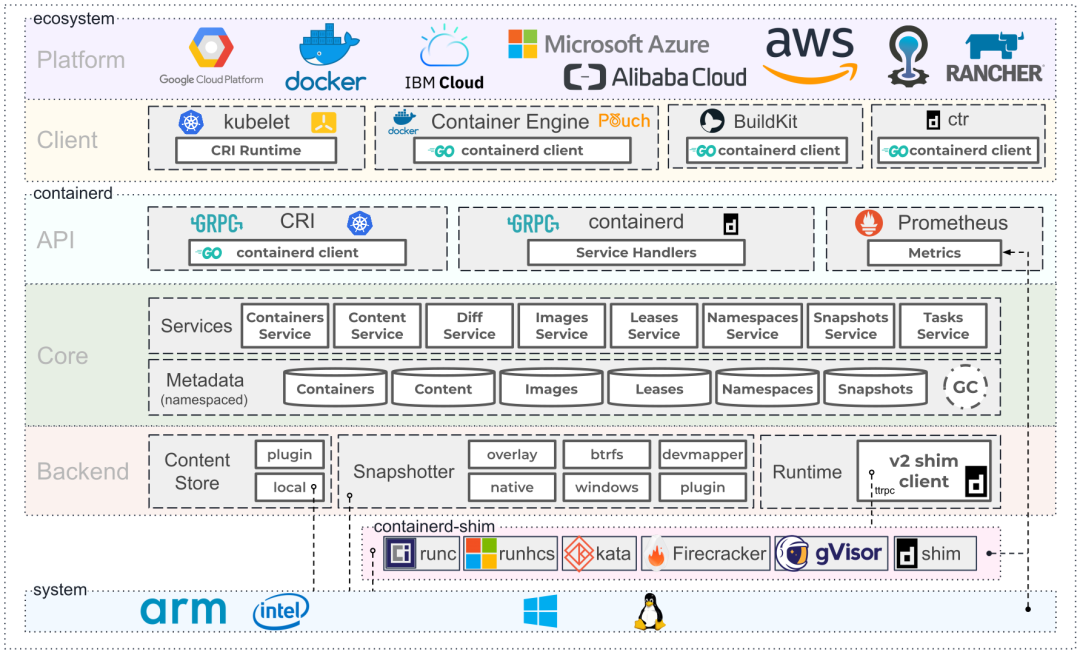
上图是 containerd 官方提供的架构图,可以看出 containerd 采用的也是 C/S 架构,服务端通过 unix domain socket 暴露低层的 gRPC API 接口出去,客户端通过这些 API 管理节点上的容器,每个 containerd 只负责一台机器,Pull 镜像,对容器的操作(启动、停止等),网络,存储都是由 containerd 完成。具体运行容器由 runc 负责,实际上只要是符合 OCI 规范的容器都可以支持。
为了解耦,containerd 将系统划分成了不同的组件,每个组件都由一个或多个模块协作完成(Core 部分),每一种类型的模块都以插件的形式集成到 Containerd 中,而且插件之间是相互依赖的,例如,上图中的每一个长虚线的方框都表示一种类型的插件,包括 Service Plugin、Metadata Plugin、GC Plugin、Runtime Plugin 等,其中 Service Plugin 又会依赖 Metadata Plugin、GC Plugin 和 Runtime Plugin。每一个小方框都表示一个细分的插件,例如 Metadata Plugin 依赖 Containers Plugin、Content Plugin 等。比如:
Content Plugin: 提供对镜像中可寻址内容的访问,所有不可变的内容都被存储在这里。Snapshot Plugin: 用来管理容器镜像的文件系统快照,镜像中的每一层都会被解压成文件系统快照,类似于 Docker 中的 graphdriver。
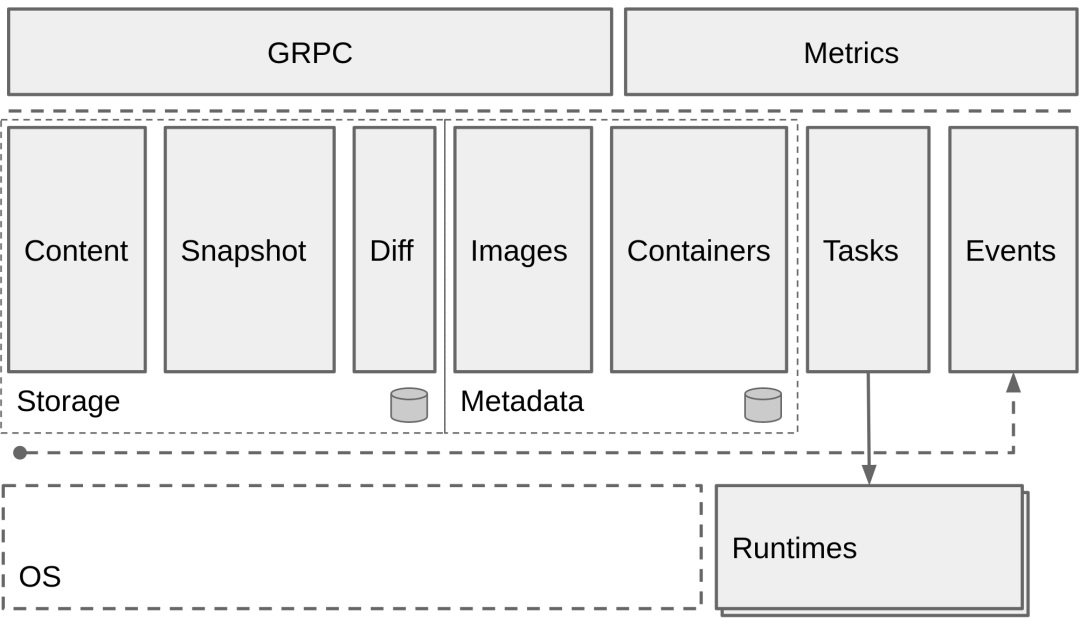
总体来看 containerd 可以分为三个大块:Storage、Metadata 和 Runtime。
客户端工具
如果你以前是docker的用户,现在转向使用containerd的话,将使用ctr管理容器和镜像,对于用户来说短时间难以适应。好在社区已经提供了近乎兼容docker命令的小工具--nerdctl。
容器运行时与客户端工具对应关系如下:
| 客户端工具 | 容器运行时 |
|---|---|
| docker | docker |
| podman | cri-o |
| nerdctl和ctr | containerd |
| crictl | cri(k8s的容器运行时接口) |
Containerd 安装和配置
实验环境
- vmware workstation 17
- ubuntu-24.04
Ubuntu系统中Containerd:
- 系统仓库自带的:containerd
- docker-ce仓库提供的:containerd.io
配置仓库
# 导入 containerd 仓库 key
root@ubuntu2404:~# curl -fsSL https://mirrors.huaweicloud.com/docker-ce/linux/ubuntu/gpg | gpg --dearmour -o /etc/apt/trusted.gpg.d/containerd.gpg

# 添加 containerd 仓库
root@ubuntu2404:~# cat << 'EOF' > /etc/apt/sources.list.d/docker-ce.list
deb [arch=amd64] https://mirrors.huaweicloud.com/docker-ce/linux/ubuntu noble stable
EOF

# 添加 kubernetes 仓库 key
root@ubuntu2404:~# curl -fsSL https://mirrors.aliyun.com/kubernetes-new/core/stable/v1.30/deb/Release.key | gpg --dearmor -o /etc/apt/keyrings/kubernetes-apt-keyring.gpg
# 添加 kubernetes 仓库
root@ubuntu2404:~# echo "deb [signed-by=/etc/apt/keyrings/kubernetes-apt-keyring.gpg] https://mirrors.aliyun.com/kubernetes-new/core/stable/v1.30/deb/ /" > /etc/apt/sources.list.d/kubernetes.list

root@ubuntu2404:~# apt update
containerd 安装
root@ubuntu2404:~# apt install -y containerd.io=1.7.20-1 cri-tools
containerd 配置
root@ubuntu2404:~# containerd config default > /etc/containerd/config.toml

# 设置crictl的runtime-endpoint
root@ubuntu2204:~# crictl config runtime-endpoint unix:///var/run/containerd/containerd.sock

# 配置镜像仓库加速
root@ubuntu2404:~# vim /etc/containerd/config.toml
# 查找 mirrors行
      [plugins."io.containerd.grpc.v1.cri".registry.mirrors]
        # 添加如下四行记录,注意缩进
        [plugins."io.containerd.grpc.v1.cri".registry.mirrors."docker.io"]
          endpoint = ["https://docker.m.daocloud.io","https://docker.1ms.run","https://docker.xuanyuan.me"]
        [plugins."io.containerd.grpc.v1.cri".registry.mirrors."registry.k8s.io"]
          endpoint = ["https://k8s.m.daocloud.io","https://registry.cn-hangzhou.aliyuncs.com/google_containers"]
# 重启服务
root@ubuntu2404:~# systemctl restart containerd.service
# containerd 服务,默认已经设置开机启动,并启动
crictl 走的是 containerd CRI 接口,会读取 /etc/containerd/config.toml 里的 registry.mirrors 配置。
下载测试:
root@ubuntu2404:~# crictl pull busybox
Image is up to date for sha256:925ff61909aebae4bcc9bc04bb96a8bd15cd2271f13159fe95ce4338824531dd
nerdctl 实践
nerdctl 安装
nerdctl 项目地址:https://github.com/containerd/nerdctl/releases
# 下载并安装
root@ubuntu2404:~# wget https://github.com/containerd/nerdctl/releases/download/v1.7.7/nerdctl-1.7.7-linux-amd64.tar.gz
root@ubuntu2404:~# tar -xf nerdctl-1.7.7-linux-amd64.tar.gz -C /usr/bin/

# 下载 nerdctl 所需要的 cni 插件
root@ubuntu2404:~# wget https://github.com/containernetworking/plugins/releases/download/v1.6.0/cni-plugins-linux-amd64-v1.6.0.tgz
root@ubuntu2404:~# mkdir -p /opt/cni/bin
root@ubuntu2404:~# tar -xf cni-plugins-linux-amd64-v1.6.0.tgz -C /opt/cni/bin

# nerdctl 依赖防火墙
root@ubuntu2404:~# apt list iptables
验证部署
[root@ubuntu2404 ~ 08:44:45]# nerdctl version
WARN[0000] unable to determine buildctl version: exec: "buildctl": executable file not found in $PATH
Client:
 Version:   v1.7.7
 OS/Arch:   linux/amd64
 Git commit:    5882c720f4e7f358fb26b759e514b3ae9dd8ea83
 buildctl:
  Version:

Server:
 containerd:
  Version:  1.7.12
  GitCommit:
 runc:
  Version:  1.3.4-0ubuntu1~24.04.1

[root@ubuntu2404 ~]# nerdctl info
Client:
 Namespace: default
 Debug Mode:    false

Server:
 Server Version: 1.7.12
 Storage Driver: overlayfs
 Logging Driver: json-file
 Cgroup Driver: systemd
 Cgroup Version: 2
 Plugins:
  Log: fluentd journald json-file syslog
  Storage: native overlayfs
 Security Options:
  apparmor
  seccomp
   Profile: builtin
  cgroupns
 Kernel Version: 6.8.0-31-generic
 Operating System: Ubuntu 24.04 LTS
 OSType: linux
 Architecture: x86_64
 CPUs: 2
 Total Memory: 3.778GiB
 Name: ubuntu2404
 ID: 9f3569cd-5ac4-40d4-acdc-5ff271ad5916

WARNING: IPv4 forwarding is disabled
WARNING: bridge-nf-call-iptables is disabled
WARNING: bridge-nf-call-ip6tables is disabled
nerdctl 配置文件
- rootful(sudo/root):
/etc/nerdctl/nerdctl.toml - rootless(普通用户):
~/.config/nerdctl/nerdctl.toml
配置内容:
# 1. containerd socket 地址(默认位置)
address = "unix:///run/containerd/containerd.sock"

# 2. 镜像加速目录(自动读取 certs.d)
hosts_dir = ["/etc/containerd/certs.d", "/etc/docker/certs.d"]

# 3. 默认命名空间(k8s 用 k8s.io)
namespace = "default"
与 containerd 通信
nerdctl 按:命令行 → 环境变量 → nerdctl.toml → 默认路径 的顺序找 socket。
默认使用 /run/containerd/containerd.sock,所以平时不用配。
- 命令行参数(临时)
nerdctl -H unix:///path/to/containerd.sock images
# 或
nerdctl --address unix:///path/to/containerd.sock ps
- 环境变量(会话级)
export CONTAINERD_ADDRESS=unix:///run/k3s/containerd/containerd.sock
nerdctl images  # 自动用这个 sock
- 配置文件(持久化)
- rootful(sudo/root):
/etc/nerdctl/nerdctl.toml - rootless(普通用户):
~/.config/nerdctl/nerdctl.toml
设置address:
address = "unix:///run/containerd/containerd.sock"
- 上面都没配,使用默认值
unix:///run/containerd/containerd.sock
nerdctl 管理镜像
[root@ubuntu2404 ~]# nerdctl image <tab><tab>
build    (Build an image from a Dockerfile. Needs buildkitd to be running.)
convert  (convert an image)
decrypt  (decrypt an image)
encrypt  (encrypt image layers)
history  (Show the history of an image)
inspect  (Display detailed information on one or more images.)
load     (Load an image from a tar archive or STDIN)
ls       (List images)
pull     (Pull an image from a registry. Optionally specify "ipfs://" or "ipns://" scheme to pull image from …)
push     (Push an image or a repository to a registry. Optionally specify "ipfs://" or "ipns://" scheme to pu…)
rm       (Remove one or more images)
save     (Save one or more images to a tar archive (streamed to STDOUT by default))
tag      (Create a tag TARGET_IMAGE that refers to SOURCE_IMAGE)
配置镜像加速
nerdctl 不会读取 CRI 专属的 registry 配置(crictl专用),而是使用 containerd 原生 API,也就是新方式:config_path + certs.d。
# 修改 config_path 值为 /etc/containerd/certs.d
[root@ubuntu2404 ~]# vim /etc/containerd/config.toml
    [plugins."io.containerd.grpc.v1.cri".registry]
      config_path = "/etc/containerd/certs.d"

# 创建加速配置目录
[root@ubuntu2404 ~]# mkdir -p /etc/containerd/certs.d

# 配置 docker.io 加速
[root@ubuntu2404 ~]# mkdir -p /etc/containerd/certs.d/docker.io
[root@ubuntu2404 ~]# cat > /etc/containerd/certs.d/docker.io/hosts.toml << EOF
server = "https://registry-1.docker.io"

[host."https://docker.m.daocloud.io"]
  capabilities = ["pull", "resolve"]

[host."https://09def58152000fc00ff0c00057bad7e0.mirror.swr.myhuaweicloud.com"]
  capabilities = ["pull", "resolve"]
EOF

# 配置 registry.k8s.io 加速
[root@ubuntu2404 ~]# mkdir -p /etc/containerd/certs.d/registry.k8s.io
[root@ubuntu2404 ~]# cat > /etc/containerd/certs.d/registry.k8s.io/hosts.toml << EOF
server = "https://registry.k8s.io"

# 首选 DaoCloud
[host."https://k8s.m.daocloud.io"]
  capabilities = ["pull", "resolve"]

[host."https://09def58152000fc00ff0c00057bad7e0.mirror.swr.myhuaweicloud.com"]
  capabilities = ["pull", "resolve"]
EOF
[root@ubuntu2404 ~]# systemctl restart containerd

# 验证加速
[root@ubuntu2404 ~]# nerdctl pull hello-world
docker.io/library/hello-world:latest:                                             resolved       |++++++++++++++++++++++++++++++++++++++|
index-sha256:f9078146db2e05e794366b1bfe584a14ea6317f44027d10ef7dad65279026885:    done           |++++++++++++++++++++++++++++++++++++++|
manifest-sha256:d1a8d0a4eeb63aff09f5f34d4d80505e0ba81905f36158cc3970d8e07179e59e: done           |++++++++++++++++++++++++++++++++++++++|
config-sha256:e2ac70e7319a02c5a477f5825259bd118b94e8b02c279c67afa63adab6d8685b:   done           |++++++++++++++++++++++++++++++++++++++|
layer-sha256:4f55086f7dd096d48b0e49be066971a8ed996521c2e190aa21b2435a847198b4:    done           |++++++++++++++++++++++++++++++++++++++|
elapsed: 3.3 s                                                                    total:  15.8 K (4.8 KiB/s)
ls
作用:查看本地镜像清单。
示例:
root@ubuntu2404:~# nerdctl image ls
REPOSITORY    TAG    IMAGE ID    CREATED    PLATFORM    SIZE    BLOB SIZE

# 可简写如下
root@ubuntu2404:~# nerdctl images
pull
作用:从网络上下载镜像。
示例:
root@ubuntu2404:~# nerdctl image pull busybox
# 可简写如下
root@ubuntu2404:~# nerdctl pull busybox

# 下载其他站点镜像
root@ubuntu2404:~# nerdctl pull docker.io/library/mysql:latest

root@ubuntu2404:~# nerdctl image ls
REPOSITORY                     TAG       IMAGE ID        CREATED           PLATFORM       SIZE         BLOB SIZE
busybox                        latest    560af6915bfc    4 minutes ago     linux/amd64    4.8 MiB      2.5 MiB
docker.io/library/mysql    latest    66990ab1ab7d    26 seconds ago    linux/amd64    411.2 MiB    134.1 MiB
rm
作用:删除本地不用的镜像。
示例:
root@ubuntu2404:~# nerdctl image rm docker.io/library/mysql
root@ubuntu2404:~# nerdctl images
REPOSITORY           TAG       IMAGE ID        CREATED               PLATFORM       SIZE       BLOB SIZE
busybox              latest    560af6915bfc    11 minutes ago        linux/amd64    4.8 MiB    2.5 MiB
tag
作用:给镜像打标签。
示例:
root@ubuntu2404:~# nerdctl tag busybox mage16196/busybox
root@ubuntu2404:~# nerdctl images
REPOSITORY                     TAG       IMAGE ID        CREATED           PLATFORM       SIZE         BLOB SIZE
busybox                        latest    560af6915bfc    10 minutes ago    linux/amd64    4.8 MiB      2.5 MiB
mage16196/busybox              latest    560af6915bfc    12 seconds ago    linux/amd64    4.8 MiB      2.5 MiB
push
作用:将镜像推送到服务器。
示例:推动到docker服务
# 登录
root@ubuntu2404:~# nerdctl login
Enter Username: mage16196
Enter Password:
WARNING: Your password will be stored unencrypted in /root/.docker/config.json.
Configure a credential helper to remove this warning. See
https://docs.docker.com/engine/reference/commandline/login/#credentials-store

Login Succeeded

root@ubuntu2404:~# nerdctl push mage16196/busybox
save
作用:将本地镜像导出为文件。
示例:
root@ubuntu2404:~# nerdctl image save busybox -o busybox.tar
# 可简写为
root@ubuntu2404:~# nerdctl save busybox -o busybox.tar

# 删除镜像
root@ubuntu2404:~# nerdctl image rm busybox
root@ubuntu2404:~# nerdctl images
REPOSITORY           TAG       IMAGE ID        CREATED          PLATFORM       SIZE       BLOB SIZE
mage16196/busybox    latest    560af6915bfc    4 minutes ago    linux/amd64    4.8 MiB    2.5 MiB
load
作用:导入tar文件中镜像。
示例:
root@ubuntu2404:~# nerdctl image load -i busybox.tar
# 可简写为
root@ubuntu2404:~# nerdctl load -i busybox.tar

root@ubuntu2404:~# nerdctl images
REPOSITORY           TAG       IMAGE ID        CREATED          PLATFORM       SIZE       BLOB SIZE
busybox              latest    560af6915bfc    2 seconds ago    linux/amd64    4.8 MiB    2.5 MiB
mage16196/busybox    latest    560af6915bfc    4 minutes ago    linux/amd64    4.8 MiB    2.5 MiB
history
作用:查看镜像构建时的历史命令层次结构。
示例:
root@ubuntu2404:~# nerdctl image pull docker.io/library/mysql
root@ubuntu2404:~# nerdctl image history docker.io/library/mysql
inspect
作用:查看镜像详细信息。
示例:
root@ubuntu2404:~# nerdctl image inspect docker.io/library/mysql
......
        "Config": {
            "AttachStdin": false,
            "ExposedPorts": {
                "3306/tcp": {}
            },
            "Env": [
                "PATH=/usr/local/sbin:/usr/local/bin:/usr/sbin:/usr/bin:/sbin:/bin",
                "GOSU_VERSION=1.7",
                "MYSQL_MAJOR=5.7",
                "MYSQL_VERSION=5.7.18-1debian8"
            ],
            "Cmd": [
                "mysqld"
            ],
            "Volumes": {
                "/var/lib/mysql": {}
            },
            "Entrypoint": [
                "docker-entrypoint.sh"
            ]
        },
......
prune
作用:删除所有未使用的镜像。
示例:
root@ubuntu2404:~# nerdctl image prune --all --force
root@ubuntu2404:~# nerdctl image ls
REPOSITORY    TAG    IMAGE ID    CREATED    PLATFORM    SIZE    BLOB SIZE
nerdctl 管理容器
帮助信息
root@ubuntu2404:~# nerdctl container <tab><tab>
commit   (Create a new image from a container's changes)
cp       (Copy files/folders between a running container and the local filesystem.)
create   (Create a new container. Optionally specify "ipfs://" or "ipns://" scheme to pull image from IPFS.)
exec     (Run a command in a running container)
inspect  (Display detailed information on one or more containers.)
kill     (Kill one or more running containers)
logs     (Fetch the logs of a container. Currently, only containers created with `nerdctl run -d` are support…)
ls       (List containers)
pause    (Pause all processes within one or more containers)
port     (List port mappings or a specific mapping for the container)
rename   (rename a container)
restart  (Restart one or more running containers)
rm       (Remove one or more containers)
run      (Run a command in a new container. Optionally specify "ipfs://" or "ipns://" scheme to pull image fr…)
start    (Start one or more running containers)
stop     (Stop one or more running containers)
unpause  (Unpause all processes within one or more containers)
update   (Update one or more running containers)
wait     (Block until one or more containers stop, then print their exit codes.)
ls
作用:查看容器清单。
示例:
root@ubuntu2404:~# nerdctl container ls
CONTAINER ID    IMAGE    COMMAND    CREATED    STATUS    PORTS    NAMES
# 可简写为
root@ubuntu2404:~# nerdctl ps
CONTAINER ID    IMAGE    COMMAND    CREATED    STATUS    PORTS    NAMES

# 使用-a选项查看所有容器,包括未运行的
root@ubuntu2404:~# nerdctl container ls -a
CONTAINER ID    IMAGE    COMMAND    CREATED    STATUS    PORTS    NAMES
常用选项:
- -a, --all Show all containers (default shows just running)
- -f, --filter strings Filter matches containers based on given conditions
- --format string Format the output using the given Go template, e.g, '{{json .}}', 'wide'
run
作用:创建并运行容器。
示例:
# 语法:
Usage: nerdctl container run [flags] IMAGE [COMMAND] [ARG...]

root@ubuntu2404:~# nerdctl container run -it ubuntu
root@249c162d8db6:/# exit
exit

# 可简写为
root@ubuntu2404:~# nerdctl container run -it ubuntu

# 容器状态为Exited
root@ubuntu2404:~# nerdctl container ls
CONTAINER ID    IMAGE    COMMAND    CREATED    STATUS    PORTS    NAMES
root@ubuntu2404:~# nerdctl container ls -a
CONTAINER ID    IMAGE                              COMMAND        CREATED           STATUS                       PORTS    NAMES
249c162d8db6    docker.io/library/ubuntu:latest    "/bin/bash"    24 seconds ago    Exited (0) 22 seconds ago             ubuntu-249c1
常用选项:
- --cpu-shares uint CPU shares (relative weight)
- --cpus float Number of CPUs
- -d, --detach Run container in background and print container ID
- --dns strings Set custom DNS servers
- -e, --env stringArray Set environment variables
- -h, --hostname string Container host name
- -i, --interactive Keep STDIN open even if not attached
- --ip string Pv4 address to assign to the container
- --mac-address string MAC address to assign to the container
- -m, --memory string Memory limit
- --name string Assign a name to the container
- --net strings Connect a container to a network ("bridge"|"host"|"none"|
) (default [bridge]) - --network strings Connect a container to a network ("bridge"|"host"|"none"|"container:
"| ) (default [bridge]) - --privileged Give extended privileges to this container
- --pull string Pull image before running ("always"|"missing"|"never") (default "missing")
- --restart string Restart policy to apply when a container exits (implemented values: "no"|"always|on-failure:n|unless-stopped") (default "no")
- --rm Automatically remove the container when it exits
- --runtime string Runtime to use for this container, e.g.
- --stop-signal string Signal to stop a container (default "SIGTERM")
- --stop-timeout Timeout (in seconds) to stop a container
- -t, --tty Allocate a pseudo-TTY
- -v, --volume Bind mount a volume
rm
作用:删除容器。
示例:
root@ubuntu2404:~# nerdctl container rm 249c162d8db6
249c162d8db6
root@ubuntu2404:~# nerdctl container ls -a
CONTAINER ID    IMAGE    COMMAND    CREATED    STATUS    PORTS    NAMES
prune
作用:删除所有未运行的容器。
示例:
root@ubuntu2404:~# nerdctl container run ubuntu
root@ubuntu2404:~# nerdctl container run ubuntu
root@ubuntu2404:~# nerdctl container ls -a
CONTAINER ID    IMAGE                              COMMAND        CREATED          STATUS                      PORTS    NAMES
62a3258de309    docker.io/library/ubuntu:latest    "/bin/bash"    6 seconds ago    Exited (0) 6 seconds ago             ubuntu-62a32
d84bb674f77f    docker.io/library/ubuntu:latest    "/bin/bash"    8 seconds ago    Exited (0) 7 seconds ago             ubuntu-d84bb

root@ubuntu2404:~# nerdctl container prune --force
Deleted Containers:
62a3258de309b3e01b1108cd0ac8fcb23918cfe05ba00719d47f9c907e83a938
d84bb674f77f3731a33958dbc74e7596dacc99688b33c64512f24bd067c9a67a
rename
作用:重命名容器。
示例:
root@ubuntu2404:~# nerdctl container run --name ubuntu-1 ubuntu
root@ubuntu2404:~# nerdctl container rename ubuntu-1 ubuntu
root@ubuntu2404:~# nerdctl container ls -a
CONTAINER ID    IMAGE                              COMMAND        CREATED           STATUS                       PORTS    NAMES
2f2aa825864f    docker.io/library/ubuntu:latest    "/bin/bash"    25 seconds ago    Exited (0) 24 seconds ago             ubuntu

root@ubuntu2404:~# nerdctl container rm ubuntu
stop 和 start
作用:停止和启动容器。
示例:
root@ubuntu2404:~# nerdctl container run -d nginx
root@ubuntu2404:~# nerdctl container ls --format "{{.Names}} {{.Status}}"
nginx-de224 Up

root@ubuntu2404:~# nerdctl container stop nginx-de224
nginx-de224
root@ubuntu2404:~# nerdctl container ls -a --format "{{.Names}} {{.Status}}" -a
nginx-de224 Exited (0) 7 seconds ago

root@ubuntu2404:~# nerdctl container start nginx-de224
nginx-de224
root@ubuntu2404:~# nerdctl container ls --format "{{.Names}} {{.Status}}"
nginx-de224 Up
restart
作用:重启容器。
示例:
root@ubuntu2404:~# nerdctl container restart nginx-de224
pause 和 unpause
作用:挂起和取消挂起容器。
示例:
root@ubuntu2404:~# nerdctl container pause nginx-de224
nginx-de224
root@ubuntu2404:~# nerdctl container ls -a --format "{{.Names}} {{.Status}}"
nginx-de224 Paused

root@ubuntu2404:~# nerdctl container unpause nginx-de224
nginx-de224
root@ubuntu2404:~# nerdctl container ls --format "{{.Names}} {{.Status}}"
nginx-de224 Up
kill
作用:给容器发信号,默认发KILL信号。
示例:
root@ubuntu2404:~# nerdctl container kill nginx-de224
root@ubuntu2404:~# nerdctl container ls -a --format "{{.Names}} {{.Status}}"
nginx-de224 Exited (137) 24 seconds ago
exec
作用:在运行的容器内部执行命令。
示例:
root@ubuntu2404:~# nerdctl container start nginx-de224
root@ubuntu2404:~# nerdctl container exec -it nginx-de224 bash
root@de2241441cb6:/# exit
exit
cp
作用:将宿主机文件复制给容器。
示例:
root@ubuntu2404:~# nerdctl container cp /etc/hostname nginx-de224:
root@ubuntu2404:~# nerdctl container exec nginx-de224 ls hostname
hostname
inspect
作用:查看容器详细信息。
示例:
root@ubuntu2404:~# nerdctl container inspect nginx-de224
[
    {
        "Id": "de2241441cb6122fa90fc68462684c9fe260e5eed20e44c83d2a9401fa7108d7",
        "Created": "2023-05-26T09:52:49.849804164Z",
        "Path": "/docker-entrypoint.sh",
        "Args": [
            "nginx",
            "-g",
            "daemon off;"
        ],
        "State": {
            "Status": "running",
            "Running": true,
            "Paused": false,
            "Restarting": false,
            "Pid": 4888,
            "ExitCode": 0,
            "Error": "",
            "FinishedAt": "0001-01-01T00:00:00Z"
        },
        "Image": "docker.io/library/nginx:latest",
        "ResolvConfPath": "/var/lib/nerdctl/1935db59/containers/default/de2241441cb6122fa90fc68462684c9fe260e5eed20e44c83d2a9401fa7108d7/resolv.conf",
        "HostnamePath": "/var/lib/nerdctl/1935db59/containers/default/de2241441cb6122fa90fc68462684c9fe260e5eed20e44c83d2a9401fa7108d7/hostname",
        "LogPath": "/var/lib/nerdctl/1935db59/containers/default/de2241441cb6122fa90fc68462684c9fe260e5eed20e44c83d2a9401fa7108d7/de2241441cb6122fa90fc68462684c9fe260e5eed20e44c83d2a9401fa7108d7-json.log",
        "Name": "nginx-de224",
        "RestartCount": 0,
        "Driver": "overlayfs",
        "Platform": "linux",
        "AppArmorProfile": "nerdctl-default",
        "Mounts": null,
        "Config": {
            "Hostname": "de2241441cb6",
            "AttachStdin": false,
            "Labels": {
                "containerd.io/restart.explicitly-stopped": "false",
                "io.containerd.image.config.stop-signal": "SIGQUIT",
                "nerdctl/extraHosts": "null",
                "nerdctl/hostname": "de2241441cb6",
                "nerdctl/log-uri": "binary:///usr/bin/nerdctl?_NERDCTL_INTERNAL_LOGGING=%2Fvar%2Flib%2Fnerdctl%2F1935db59",
                "nerdctl/name": "nginx-de224",
                "nerdctl/namespace": "default",
                "nerdctl/networks": "[\"bridge\"]",
                "nerdctl/platform": "linux/amd64",
                "nerdctl/state-dir": "/var/lib/nerdctl/1935db59/containers/default/de2241441cb6122fa90fc68462684c9fe260e5eed20e44c83d2a9401fa7108d7"
            }
        },
        "NetworkSettings": {
            "GlobalIPv6Address": "",
            "GlobalIPv6PrefixLen": 0,
            "IPAddress": "10.4.0.14",
            "IPPrefixLen": 24,
            "MacAddress": "3e:51:10:ab:23:0b",
            "Networks": {
                "unknown-eth0": {
                    "IPAddress": "10.4.0.14",
                    "IPPrefixLen": 24,
                    "GlobalIPv6Address": "",
                    "GlobalIPv6PrefixLen": 0,
                    "MacAddress": "3e:51:10:ab:23:0b"
                }
            }
        }
    }
]
logs
作用:显示容器console终端内容。
示例:
root@ubuntu2404:~# nerdctl container logs nginx-de224
/docker-entrypoint.sh: /docker-entrypoint.d/ is not empty, will attempt to perform configuration
/docker-entrypoint.sh: Looking for shell scripts in /docker-entrypoint.d/
/docker-entrypoint.sh: Launching /docker-entrypoint.d/10-listen-on-ipv6-by-default.sh
10-listen-on-ipv6-by-default.sh: info: IPv6 listen already enabled
/docker-entrypoint.sh: Launching /docker-entrypoint.d/20-envsubst-on-templates.sh
/docker-entrypoint.sh: Launching /docker-entrypoint.d/30-tune-worker-processes.sh
/docker-entrypoint.sh: Configuration complete; ready for start up
2023/05/26 10:55:17 [notice] 1#1: using the "epoll" event method
2023/05/26 10:55:17 [notice] 1#1: nginx/1.25.0
2023/05/26 10:55:17 [notice] 1#1: built by gcc 10.2.1 20210110 (Debian 10.2.1-6)
2023/05/26 10:55:17 [notice] 1#1: OS: Linux 5.15.0-72-generic
2023/05/26 10:55:17 [notice] 1#1: getrlimit(RLIMIT_NOFILE): 1024:1024
2023/05/26 10:55:17 [notice] 1#1: start worker processes
2023/05/26 10:55:17 [notice] 1#1: start worker process 22
2023/05/26 10:55:17 [notice] 1#1: start worker process 23
port
作用:显示宿主机和容器之间端口映射关系。
示例:
root@ubuntu2404:~# nerdctl container run --name nginx -d -p 8080:80 nginx
root@ubuntu2404:~# nerdctl container port nginx
80/tcp -> 0.0.0.0:8080